Report Builder Interface
The Report Builder Interface allows users to design, configure, and customize reports based on CRM data. It is an interactive, drag-and-drop workspace that provides flexibility to visualize data in different formats./
Key Sections of the Interface
1. Data Fields
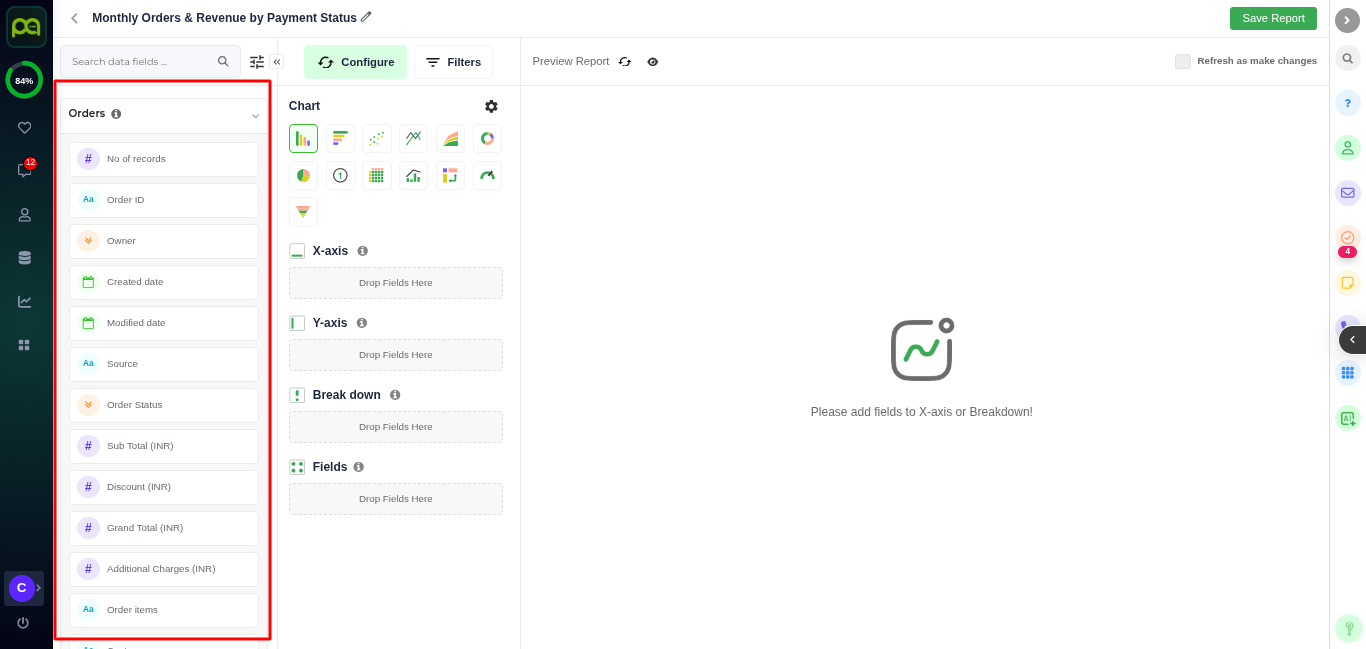
Data Fields are columns from your selected data source or modules. All fields are organized and displayed under their respective module names.
See the below picture

The list includes fields under their module names:-
Primary Module – The main module selected when creating the report.
Lookup Modules – Modules that are linked to the primary module through lookup fields, displayed with their own name and fields grouped underneath.
Linked Modules – Related modules connected through relationships, with their fields also shown under their respective module names.
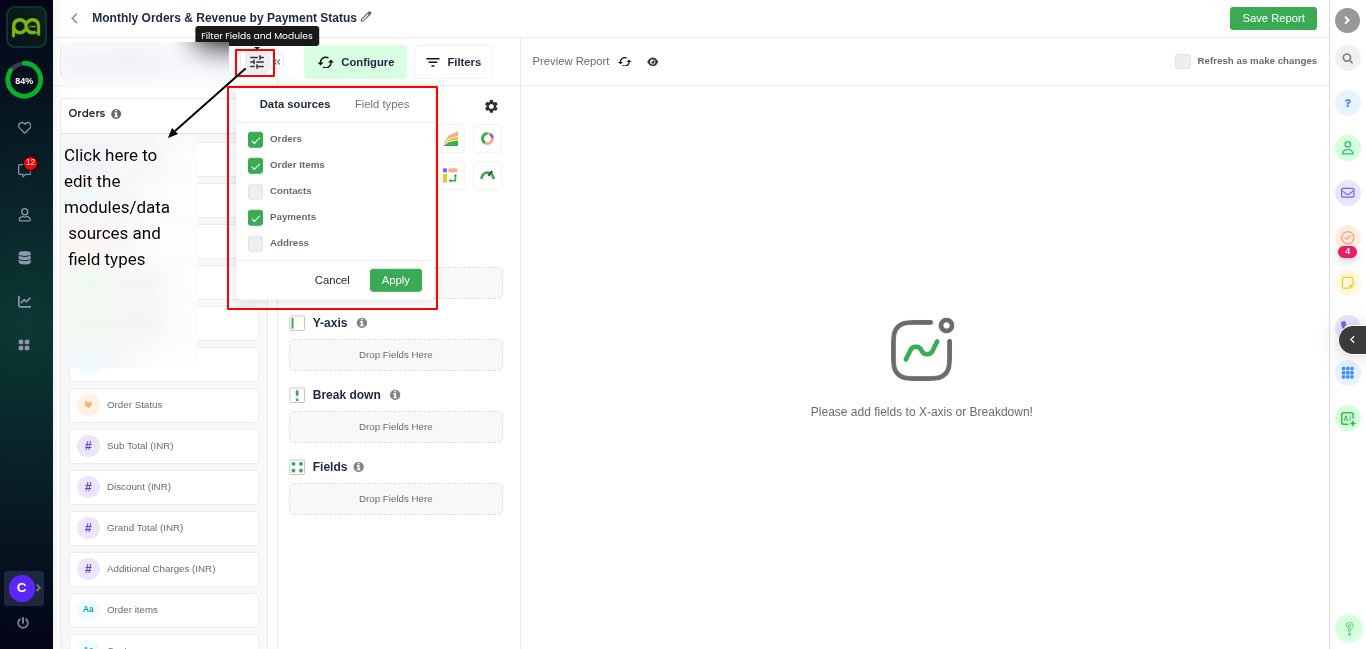
Modules and data fields Filter Icon
This allows you to manage which fields and modules are visible in the Data Fields panel.
When clicked, it opens a pop-up with two sections:-
Data Sources - Lists all selected modules,you can select or deselect modules to show or hide their fields and modules.
Field Types - Lists all field categories:You can check or uncheck field types to display only the kinds of fields you need.
After selecting click apply and update the field list based on your selections.
See the below picture

2. Configuring Charts
The Configure tab allows you to define how your report’s chart should display data.
This is where you choose the chart type, select which values to show, and organize your data visually.
Key Components-
Chart Type
Select from different chart styles such as Bar, Line, Pie, Funnel, Gauge, and more. Choose the one that best represents your data.
Simply click the chart icon to switch the visualization type
See the below picture

Chart Builder Section
Field placement areas define how your selected fields are used to build a chart or table. Each area determines how data is grouped, measured, and displayed.
Note : To add fields into it , drag and drop fields into the configure axis section. These fields define what is measured and how the chart is structured.
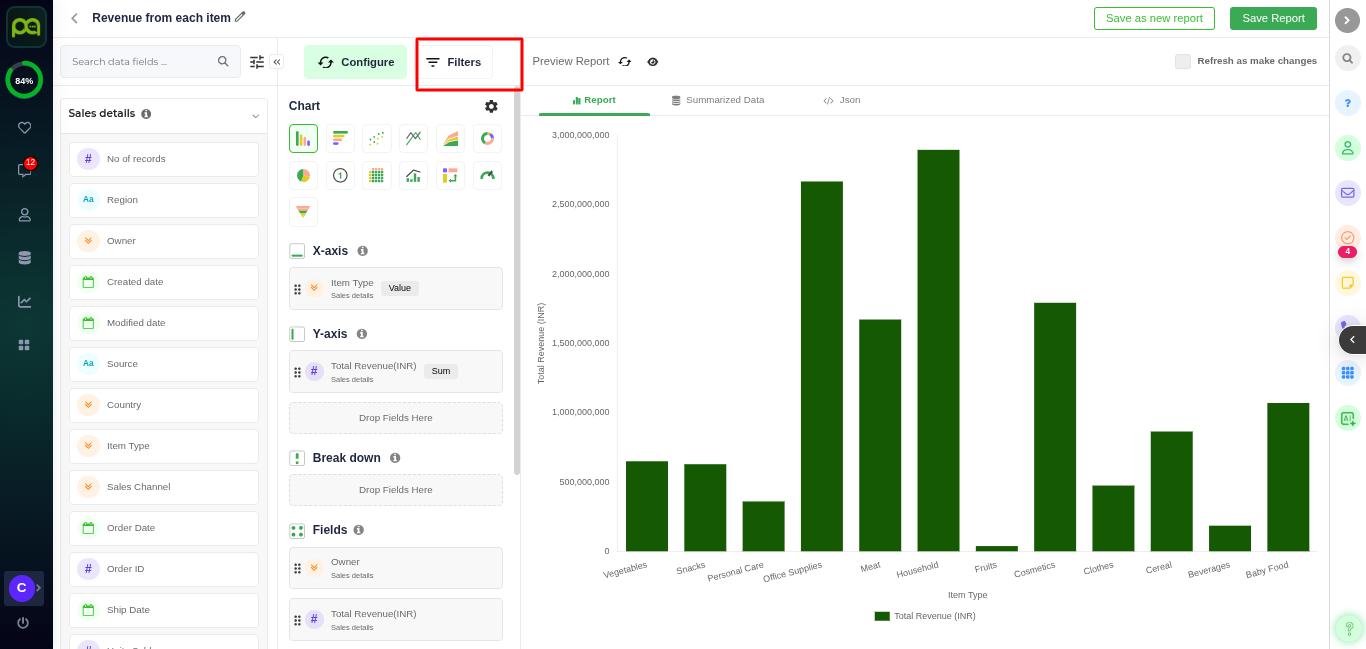
See the below picture of bar chart with x ,y and breakdown axis

Depending on the chart type, you will see different configuration sections:-
X-Axis
Used for categorical fields (e.g., Owner, Region, Product Category).
In a vertical chart, X-axis shows categories along the horizontal line.
In a horizontal chart, X-axis shows the values (numeric scale).
Y-Axis
Used for numeric or aggregated fields (e.g., Count, Sum, Average).
Defines the height of bars, points on a line chart, or data range.
In a horizontal chart, Y-axis holds the categories won't accept aggregated fields
Breakdown
Adds segmentation to the chart by splitting data into multiple series or colors.
Example: If X-axis is Owner, adding Order Status in Breakdown will show one bar per status for each owner.
Values
Represents metrics to measure, such as number of records, totals, or calculated fields.
Required in Gauge, Pie, Donut, and KPI charts (these use only values).
See the below image

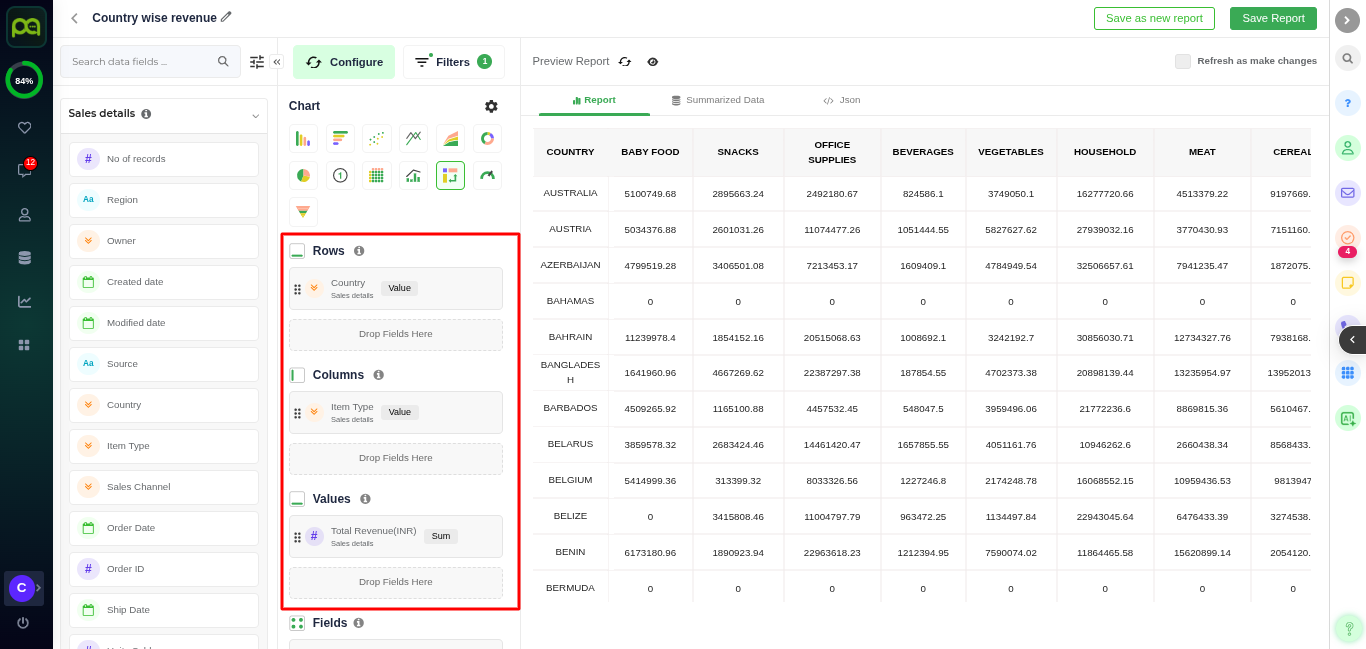
Rows and Columns (Tables charts Only)
Rows: Group data by selected field (displayed as row headers).
Columns: Group data by selected field (displayed as column headers).
Combine both to create cross-tab summaries.
See the below picture

Fields Section
When you remove or replace a field from an axis (X-axis, Y-axis, or Breakdown), the removed field is automatically added to the Fields Section.
You can also manually drag additional fields from the Data Fields panel into this section.
Fields placed here do not affect the chart layout but will be available in the summarized data view and exported reports ( More details about summarized records are explained later in this document).

Note - Some axes will appear or disappear depending on the chart type you select. For example, Gauge Charts only show Values and Fields, while Pivot Tables use Rows + Columns + Values.
Filters and External Attribute
The Filter section allows you to narrow down the data used in your report.
To add filters or external attributes , Click on Filters option

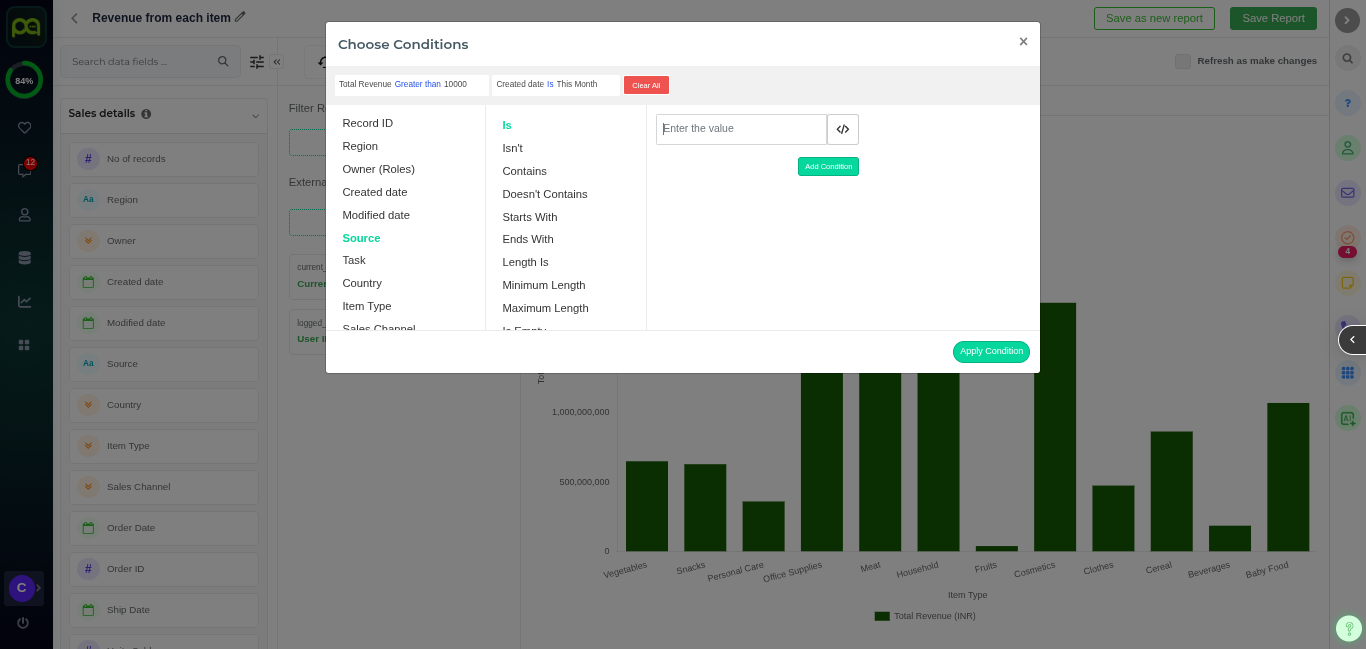
To add filter click on +Add filters

A pop-up appears displaying fields from the Primary Module you selected for the report.You can set one or more filter conditions

Once applied, these filters ensure that only the records meeting the defined criteria are fetched and summarized in the report output.

External Attributes
The External Attributes section lets you add dynamic values that update automatically every time the report runs. These values can be used in filter conditions so that reports adjust automatically to the context ,without needing you to manually edit filters each time.
You can also use external attributes to bring extra conditions or data from outside your Primary Module, such as information from other connected sources, and include them in your analytics. This ensures your reports are always up to date and relevant.
Instead of fixed values, external attributes use placeholders that the system replaces with real values at runtime.
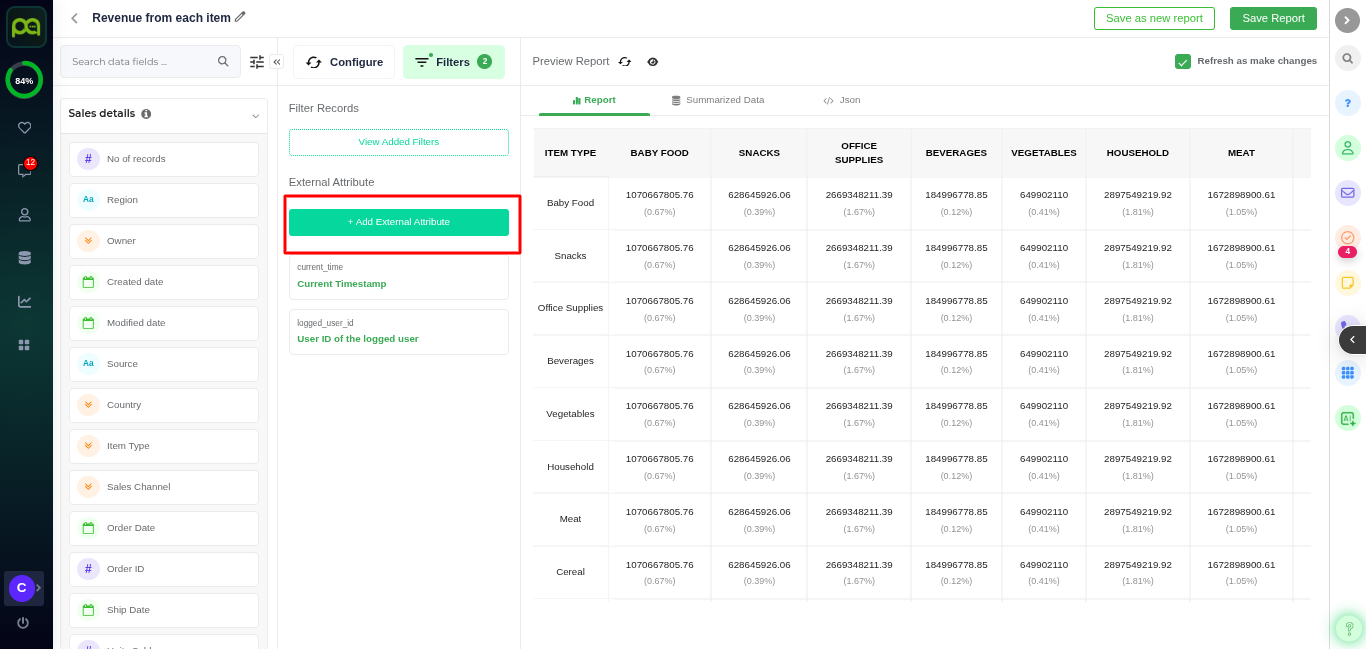
To add external attribute click + Add External Attribute button

Clicking + Add External Attribute opens a dialog where you can specify Key and Value pairs.
See the below picture

Examples:
Current Time – Inserts the exact date and time when the report runs, useful for filtering records for “today,” “this week,” or “last 24 hours
Logged-in User ID – Filters the data so that each user only sees their own records automatically, without manually applying a filter.
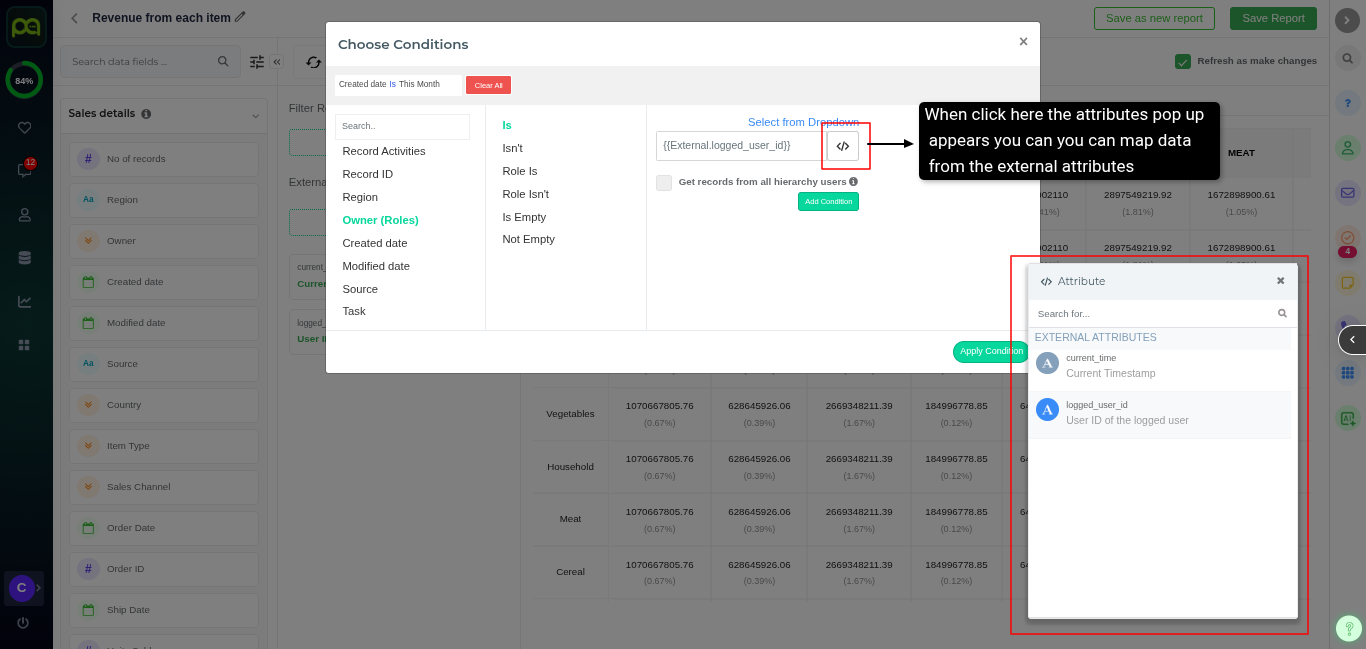
When added, these attributes appear as placeholders (for example, {{External.logged_user_id}}) inside your filter conditions. When the report is generated, the placeholder is replaced with the actual value, keeping the data personalized, real-time, and accurate.
See the image below

External Attributes are especially useful for real-time dashboards, user-specific reports, and cross-source analytics where data needs to adjust automatically based on who is viewing the report or when it is accessed.
Chart Settings
The Chart Settings allows you to customize the look, and behavior of your charts. You can control labels,legends, colors, and more to make your data easy to read and visually appealing.
To open Chart Settings -
First select the chart type you want (Bar, Line, Pie, Funnel, Gauge, etc.).
Then click the Settings Icon.
See the image below

Once the chart settings panel is open, you can configure the following options:-
Hide Groups with Empty Data
If enabled this option then removes groups or categories that have no data. Example: If one region has no sales, it will not be shown on the chart.
Show Chart as Stacked
This option works only when a breakdown or multiple values are present in the chart. Displays multiple breakdown values stacked within a single bar/area. For example : We can stack the different members of the department in the same bar
Labels
Under Labels, you can customize the text that appears in the chart tooltips when you hover over the data points in the chart.
You can rename each label by entering a custom name in its respective field box:
Value Label : Rename the individual data point label. The new name will appear in tooltips. For example: Value: 34 → Sales: 34.
Total Label: Change how the label for totals are displayed. Example:Total is shown by default you can change to Total Sales: 120
Percentage Label: Rename the percentage value displayed. Example: percentage : 45% → Sales Contribution: 45%
Please see the below picture

Axis Scale settings
Axis settings let you control how the chart displays values on the X-axis or Y-axis.
The scale decides how numbers are spaced out on the axis.
You can choose between two main options:
Linear Scale: Displays values in equal increments. Best for most reports where data that grows steadily or has similar value ranges. Shows values in equal steps , for example: 0, 10, 20, 30....
See the below image

Logarithmic Scale: Shows values in multiples — for example: 10, 100, 1,000...Perfect for data with very large differences between values.This scale compresses very large numbers and stretches smaller ones so that all data points remain visible and meaningful.
If you have sales of 10, 50, and 10,000, a linear scale will make the smaller bars almost invisible. Switching to a logarithmic scale allows you to compare them more clearly.
See the below image

Min and Max Values
This option lets you control where the axis starts (Min) and ends (Max).Here you manually define the minimum and maximum range for axes. For example,If your data values range from 700 to 900, you can set Y-axis Min = 600, Max = 1000 to zoom into this range for better visual clarity.
Legend Position
Legend is the small area on a chart that shows which color or pattern represents which data series.
Legend Position lets you choose where the legend appears around your chart so it’s easy to read and doesn’t block your data.
You can place the legend in different spots, choose the position from the drop-down menu:
Top – Displays the legend above the chart.
Bottom – Displays the legend below the chart (great for wide charts).
Left – Places the legend on the left side, saving vertical space.
Right – Places the legend on the right side, commonly used for pie and donut charts.
Color Palette The Color Palette setting lets you choose the colors you want in your chart.
You can select a palette from the options to quickly apply a consistent set of colors.
See the below image

Dashboard settings
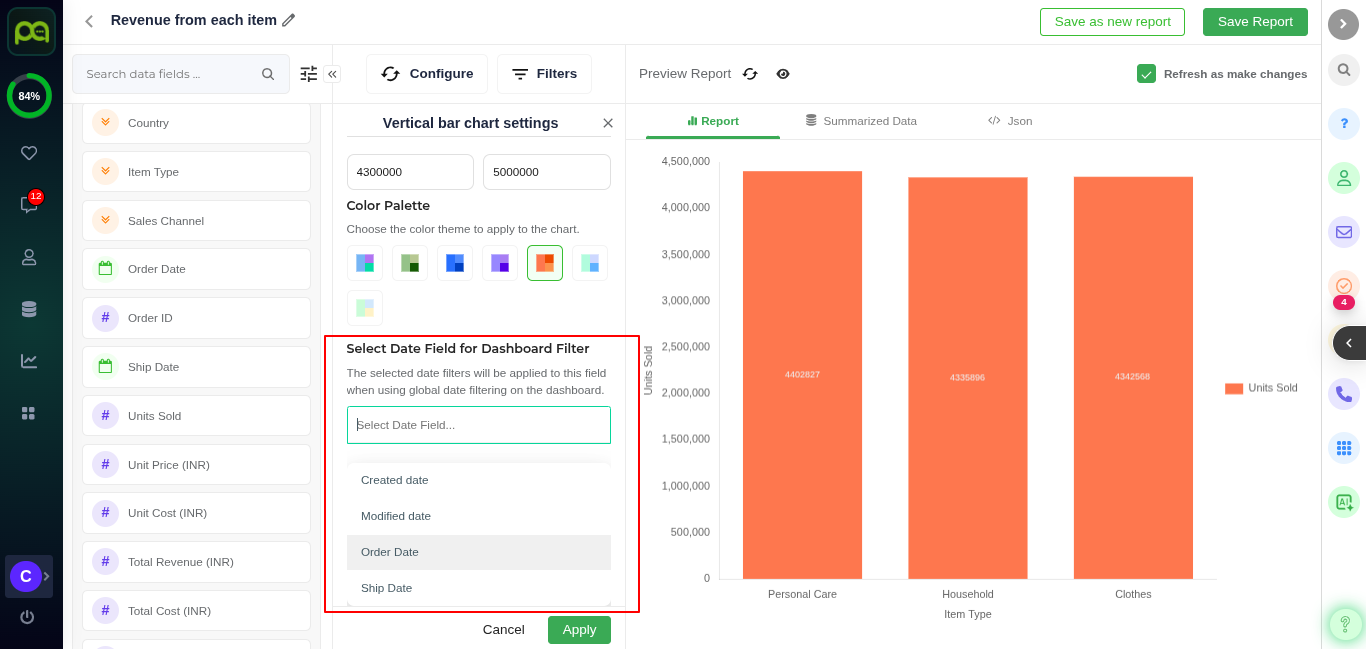
You can select a Date Field that will be used for filtering your report when it is placed inside a dashboard.
When you select a date field here (like Created Date, Modified Date, Order Date, or Ship Date), the chart will automatically update whenever a date range filter is applied on the dashboard (for example, “Last 7 Days” or “This Month”).
For example:If you select Order Date as the dashboard date field and someone applies a “Last 30 Days” filter in the dashboard, your chart will instantly refresh to only show orders from the last 30 days.
See the below image

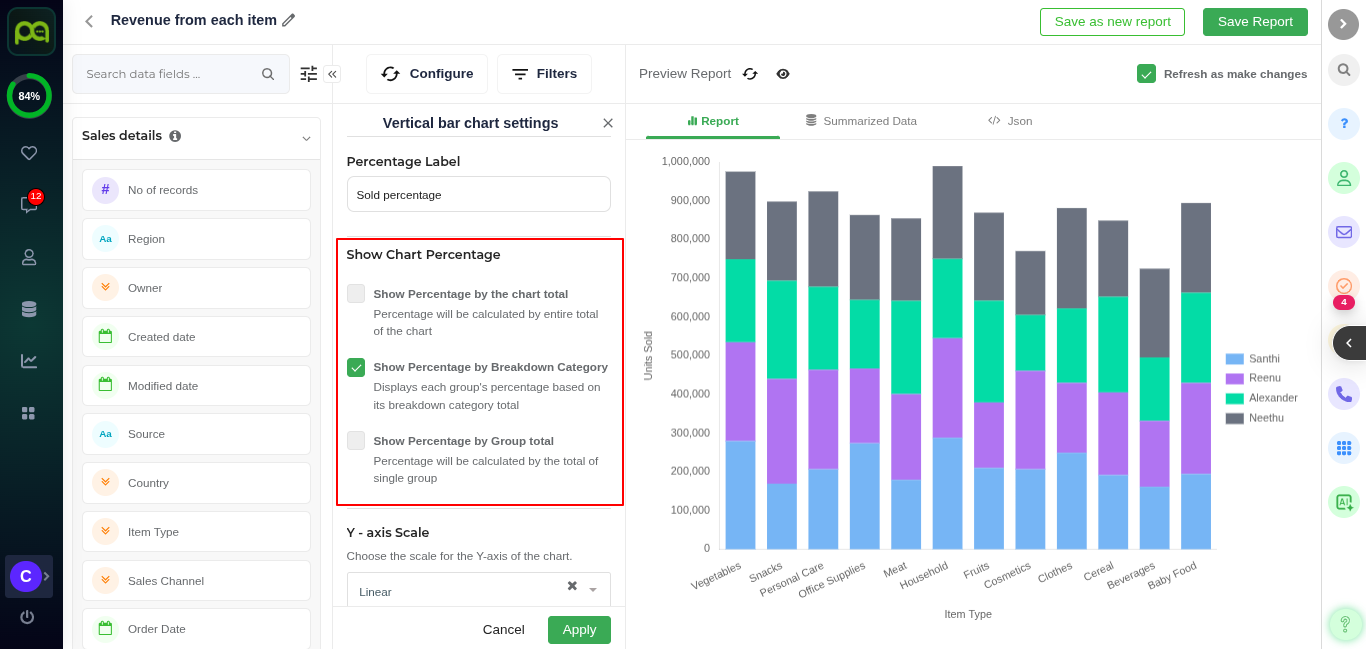
Show Chart Percentage (Bar Charts , combinational, line charts etc)
Show Percentage by Chart Total
Calculates the percentage of each data point based on the total of all data points in the chart.This means every bar, lines in the chart (if you have multiple value fields) is considered when calculating the total.
Use this option when you want to calculate percentages based on the total of everything displayed in the chart.
If you have one value field (e.g., Total Cost), it will simply divide each data point by the sum of all data points.
If you have two or more value fields (e.g., Total Cost + Total Revenue), it will combine all the values across all series to calculate a single overall total, then calculate each bar/point as a percentage of that combined total.
Show Percentage by Breakdown Total
Use this when you have a “Breakdown” field (e.g., Category, Region, Sales Channel) and want percentages calculated per breakdown group.
Show Percentage by Group Total
Use this when you have multiple series (value fields) in the same group (like Total Cost + Total Revenue) and want percentages relative to that group only.
How It Works: Calculates percentage within each group on the X-axis (or Y-axis in horizontal charts). This means each group’s bars/lines add up to 100% individually, instead of across the whole chart. See the below picture

Table Chart Percentage Settings
When you choose Simple Table or Pivot Table as the chart type and open Chart Settings, you will see special options that control how totals and percentages are displayed.
Show Total -When this option is enabled, the system automatically calculates and displays row totals and column totals for your data. Row Totals: Show the sum of all values in each row. Column Totals: Show the sum of all values in each column, displayed at the bottom.
Show Chart Percentage When this option is enabled, the system will automatically calculate and display percentages for the values in the table.
You can also choose how the percentage should be calculated by selecting one of the following criteria:
By Table Total – Calculates each value as a percentage of the overall total of the entire table. By Column Total – Calculates each value as a percentage of the total of its column. By Row Total – Calculates each value as a percentage of the total of its row.
Note : Along with enabling this option, go to the Values Field Settings and enable Global Percentage to make this feature work correctly.If Global Percentage is not enabled, the percentage values will not be displayed in the table. (More details about Field Settings and Global Percentage will be discussed later in this document under Field Settings.)
See the below Image

Fields Settings
CRM fields are placed in the chart axes (X, Y, Breakdown, Columns, Values, etc.) to decide what data is shown and how it is grouped or measured in the report.
Field Settings let you control how your data appears in reports and charts.They determine what labels you see, how values are grouped, sorted, or calculated.
To edit any field's settings-
Click the settings icon next to the field name.
See the below image

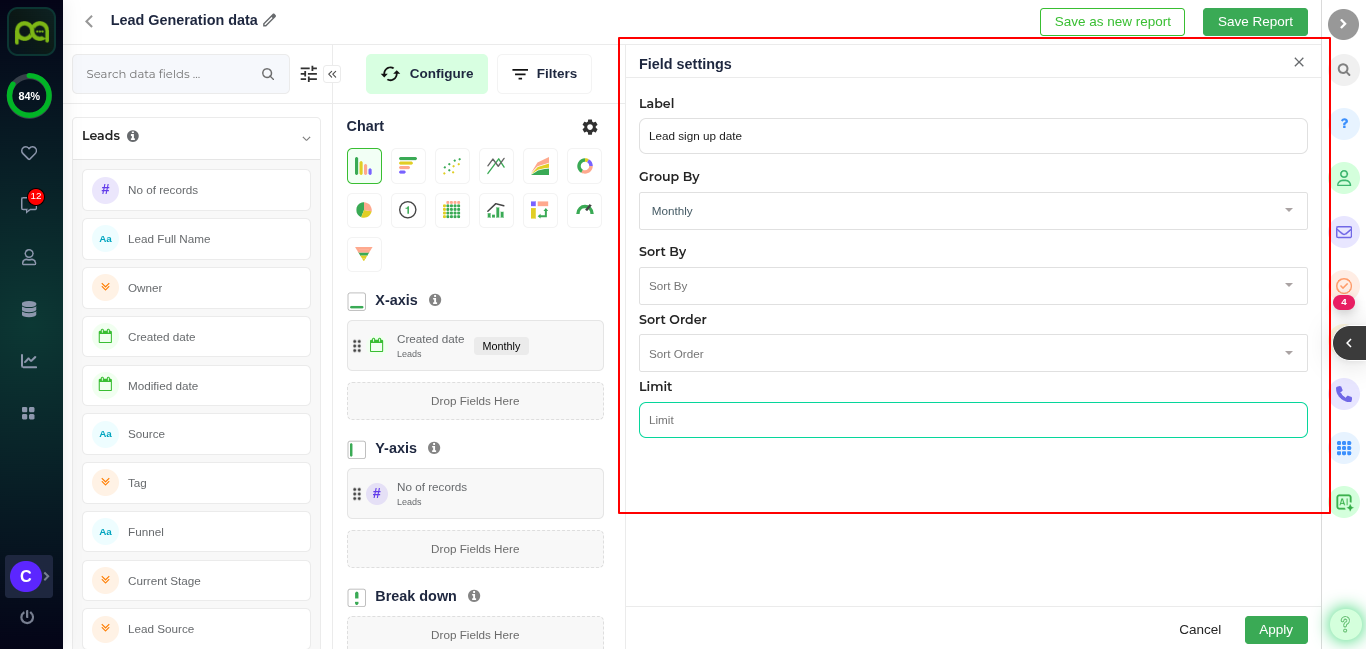
When you click on a field, the settings panel will appear on the right side. Each field type (such as category, date, or numeric) has its own settings.
Date fields – options like grouping by day, week, month, or year.
Category fields – options like sorting and limiting results.
Numeric fields – options like aggregation (sum, average, count, etc.).
See the below image (date fields settings)

Here’s a breakdown of each option you’ll find under Field Settings:
Label By default, it shows the CRM field name (e.g., Created Date).You can give it a simpler name so users understand it better. Example:Rename Created Date → Signup Date to make it clear that it shows when someone signed up. Here you can rename the field to make it more meaningful for your audience.
Sorting Sorting helps you control the order in which data appears in the chart or table.
Sort By : Value: Sort based on the actual number (e.g., highest sales first). Label: Sort alphabetically (A → Z or Z → A). It will sorted by the label of the chart
Sort Order: Choose how you want the items arranged. Ascending: Displays values in increasing order – smallest or earliest first (A → Z, 0 → 9) Descending: Displays values in decreasing order – largest or latest first (Z → A, 9 → 0). Custom: Choose this option to manually arrange items by dragging and placing them in the exact order you prefer (e.g., place "High", "Medium", "Low" in a priority order, not alphabetically).
Grouping (Date Fields Only) If you are using a date field, you can group data into time periods to make it easier to read trends:Daily, Weekly, Monthly, Quarterly, Yearly etc. grouping options available. For example: Group "Created Date" by Month to see how many leads were created each month instead of listing each individual day.)
Limit Use this option to restrict the number of results shown in your chart or table. For example, If you have 50 sales agents but only want to see the top 5 performers, set Limit to 5 to display only those 5.
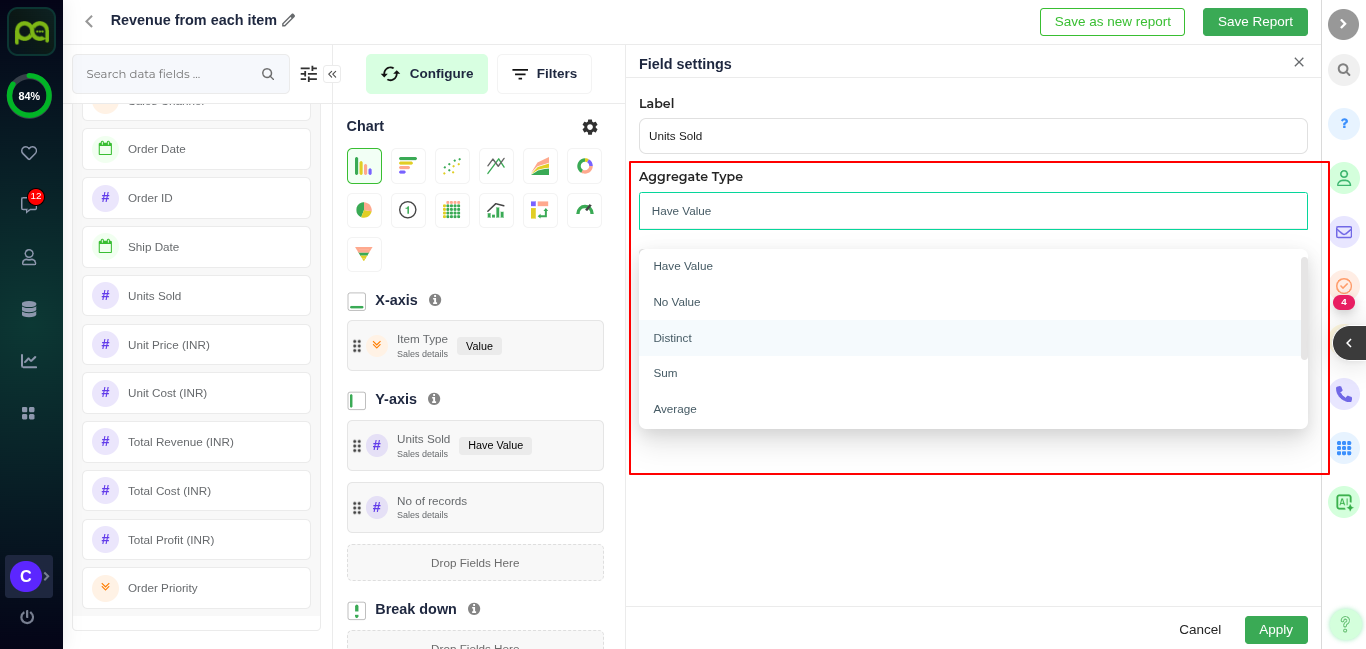
Aggregate type
Aggregate Type decides how the system should combine, count, or calculate the values of a field before displaying them in the chart.
See the image below

SL No:
Aggregate Type
Definition
Example
1
Have Any Value
Counts all records where the field is NOT empty (has any value).
Counting leads that have a phone number filled.If you have 100 leads and 80 of them have phone numbers, this will show 80.
2
No Value
Counts all records where the field is empty.
Counting leads that do not have an email address. If you have 100 leads and 25 are missing an email, this will show 25.
3
Distinct
Counts unique values only, ignoring duplicates.
If we need to take the unique customers from the module based on the mobile. (i.e) It will calculate only the unique customers using the mobile.
4
Sum
Adds up all numeric values in the field.
Total sales amount from all orders. If you have orders of $50, $100, and $150, the sum will be $300.
5
Min
Finds the smallest value in the field.
-
6
Max
Finds the largest value in the field.
-
7
Average
Calculates the mean (average) of all values in the field.
-
8
Formula
Allows you to create a custom calculation (See below)
Formula
When you select Formula as the aggregate type, a formula editor will appear. This allows you to create custom calculated fields by combining existing fields using mathematical expressions.
See the below image

How to Use the Formula Editor
Click Attributes inside the editor to open a popup showing all available configured fields in the chart.
Select the fields you want to use in your calculation.
Combine them using mathematical operators such as: + (Add) - (Subtract) * (Multiply) / (Divide)
Example formulas you can create:
Combine two fields: Field A + Field B
Subtract one value from another: Field A - Field B
Divide: Field A / Field B
This feature is powerful for deriving new metrics without changing the original dataset.
We can use the brackets to build the mathematical expression more specific to the usecase and execution priorities.
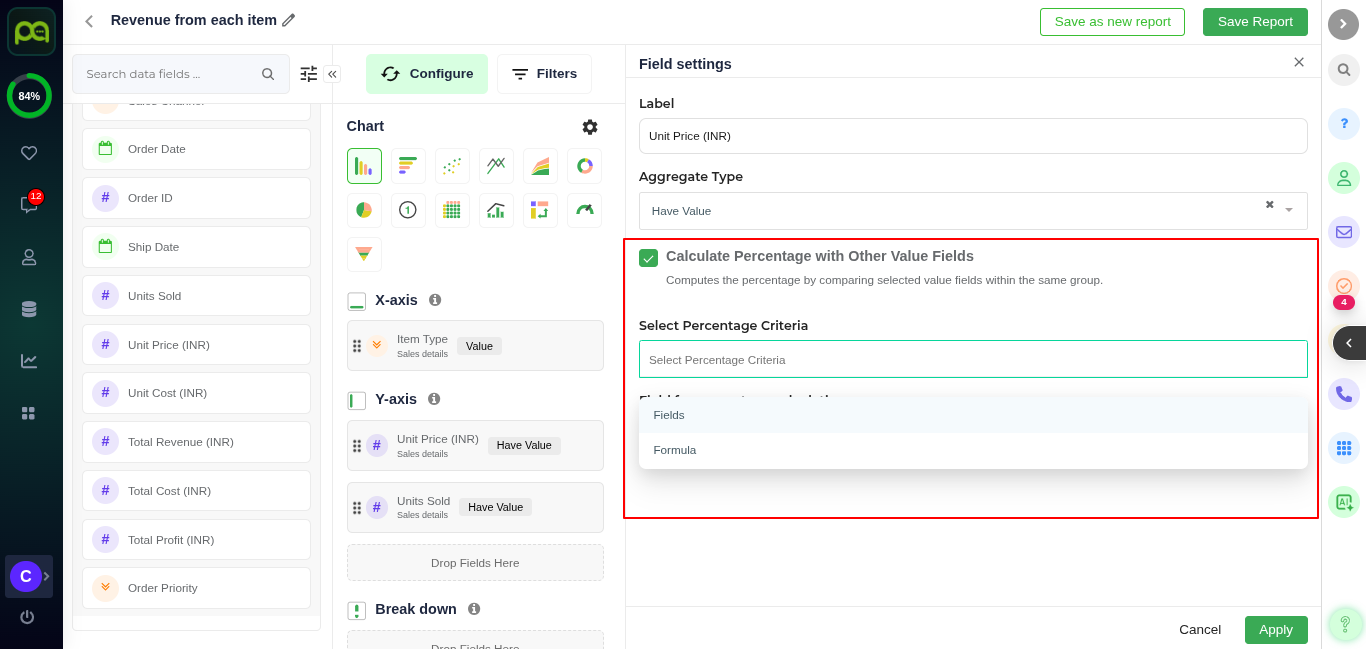
Calculate Percentage with Other fields
This option lets you display your data as percentages by comparing one field’s value with another field or a custom formula.
When you enable "Calculate Percentage with Other Value Fields", you can choose one of two methods: See the image below

Field-Based Calculation In this method you can compare one field’s values against another field’s values to get a percentage.
Note : You must have at least two numeric fields in the same axis
Once you have selected the Fields as the percentage calculation type, in the Field for percentage calculation dropdown, choose the field you want to compare against. Formula Based Calculation
Formula-Based Percentage Calculation allows you to create custom percentage metrics by writing your own formula, instead of just comparing one field to another.
You can use multiple fields, constants, and mathematical operators to define exactly how the percentage should be calculated.
The percentage value is displayed when you hover over the data points (bars, lines) in your chart.
See the image below

Choose Formula as Aggregate Type When setting up the field, select Formula under Aggregate Type.
Open Formula Editor A formula editor will appear, where you can build your calculation.
Insert Fields Click Attributes to open a popup that lists all available fields configured in the report. Select the fields you want to use ,they will be inserted into the formula editor.
Build Your Formula Use mathematical operators to create your calculation:
Last updated
Was this helpful?