> For the complete documentation index, see [llms.txt](https://help.pickyassist.com/llms.txt). Markdown versions of documentation pages are available by appending `.md` to page URLs; this page is available as [Markdown](https://help.pickyassist.com/setting-up-guide/meta-ad-tracker.md).
# Meta Ad Tracker
Track the real ROI of your Meta Ads by connecting ad performance with leads, conversions, and sales inside Picky Assist CRM.
## Introduction
Meta ROI Tracker is a powerful analytics feature in **Picky Assist** that helps businesses and digital marketing teams clearly understand **which Meta Ads are actually generating revenue**, not just leads.
By connecting your **Meta Ad Account** with **Picky Assist Conversational CRM**, you can track the full journey:
**Ad → Lead → Conversation → Sale → Revenue → ROI**
This removes guesswork from ad spend decisions and helps you confidently invest more in campaigns that truly perform.
### How Meta ROI Tracker Works
Meta ROI Tracker works by intelligently combining **Meta Ad data** with **Picky Assist CRM data**. This ensures that every lead and every sale is attributed back to the exact ad that generated it.
When your Meta Ad Account is connected to Picky Assist, the system automatically captures incoming leads from supported ad types and links them to your CRM. As your team engages with these leads and updates their status, the system continuously tracks progress and outcomes.
Once a lead is converted into a sale, the conversion is attributed to the original ad and optionally reported back to Meta for further optimization.
#### Lead Capture & Attribution
* When you connect your Meta Ad Account with Picky Assist:
* New leads from **Click‑to‑WhatsApp Ads** or **Facebook Lead Forms** are automatically captured.
* A **Contact** and **Lead** are created in the Picky Assist CRM.
* Each lead is tagged with its **Ad Name, Ad ID, Campaign ID**, and source.
#### Conversion Tracking
* As your team works the lead:
* When the CRM **Lead Stage** moves to a configured stage (e.g., *Closed*), the system marks it as a **conversion**.
* For **WhatsApp Commerce**, revenue is tracked directly from the Order module.
#### Conversion Reporting Back to Meta
* Once a lead is marked as converted:
* Picky Assist reports the conversion back to **Meta**.
* Meta uses this signal to optimize campaigns and deliver **better quality leads**.📊 According to Meta reports, conversion feedback can reduce **Cost Per Lead by up to 22%**.
### Supported Ad Types
Meta ROI Tracker focuses only on ad formats where end‑to‑end attribution is reliable and accurate. Currently, Meta ROI Tracker supports **only the following ad types**:
#### 1. Click‑to‑WhatsApp Ads (CTWA)
* Ads where the **Call‑to‑Action (CTA)** opens a WhatsApp chat.
* The WhatsApp number must be **connected to Picky Assist**.
#### 2. Facebook Lead Ad Forms
* Ads that use Meta’s built‑in Lead Forms.
* Forms must be connected to **Picky Assist**.
#### ❌ Not Supported
* Website or landing‑page redirects
* WhatsApp chats initiated from websites
* External forms or third‑party landing pages
### Why Measuring ROI Matters
Ad spend without clear ROI visibility often leads to wasted budgets and incorrect optimization decisions. Measuring ROI allows you to move beyond vanity metrics and focus on what truly impacts revenue.
With Meta ROI Tracker, you can identify which campaigns generate real customers, understand acquisition costs, and align both sales and marketing teams using a single source of truth.
Tracking ROI helps you:
* Identify **high‑performing ads**
* Stop spending on ads that don’t convert
* Reduce customer acquisition cost
* Optimize campaigns using real sales data
* Align marketing and sales teams with one source of truth
### Prerequisites
Before setting up Meta ROI Tracker, a few foundational requirements must be met. These ensure that Meta and Picky Assist can securely exchange data and attribute leads correctly.
✅ Active **Meta Ad Account**\
✅ WhatsApp Channel connected to the **same Meta Business Suite**\
✅ Facebook Lead Forms connected to the **same Meta Business Suite**\
✅ WhatsApp & Lead Forms connected with **Picky Assist**\
✅ **Admin access** to Meta Business Manager
***
### Getting Started
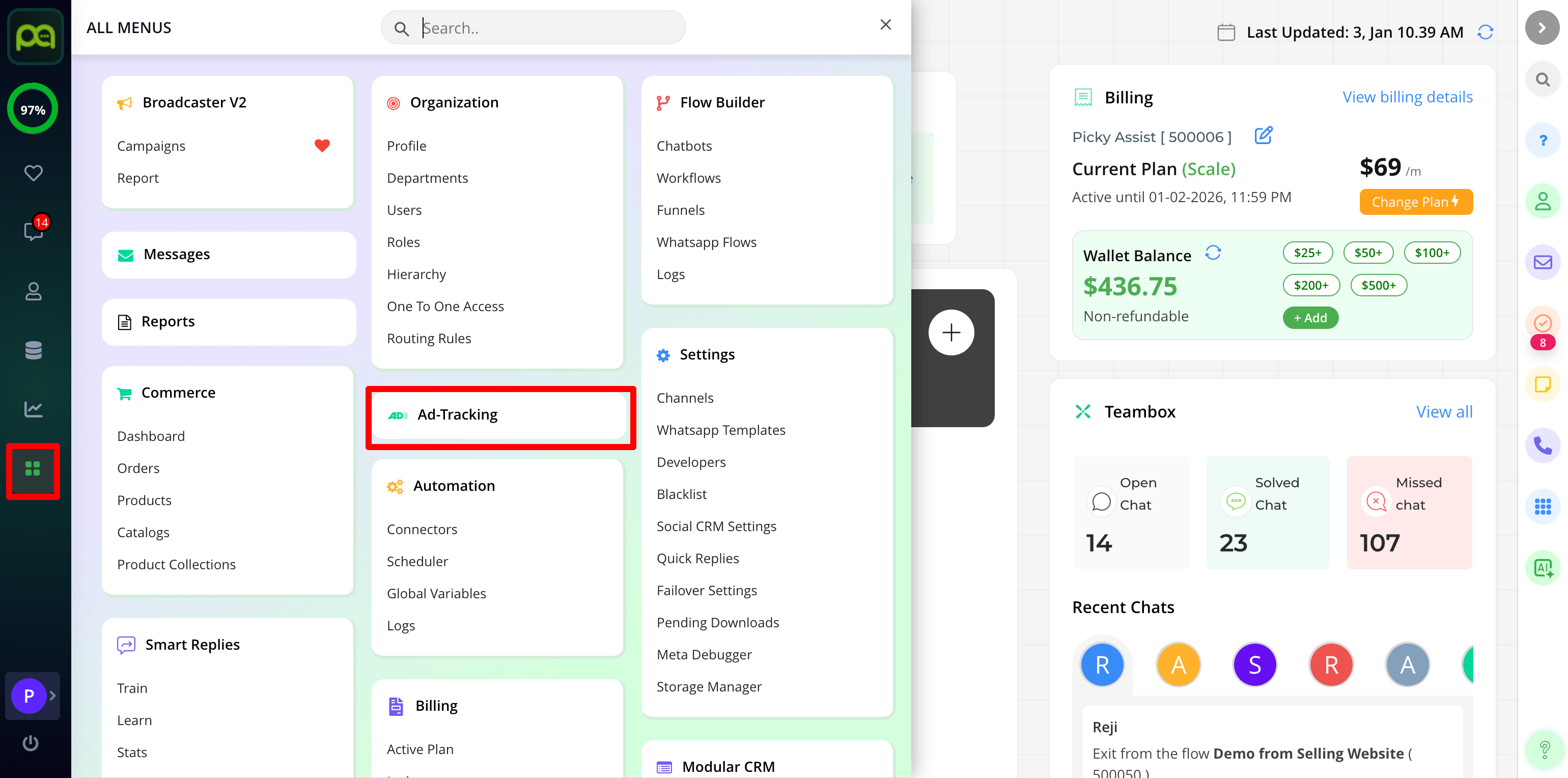
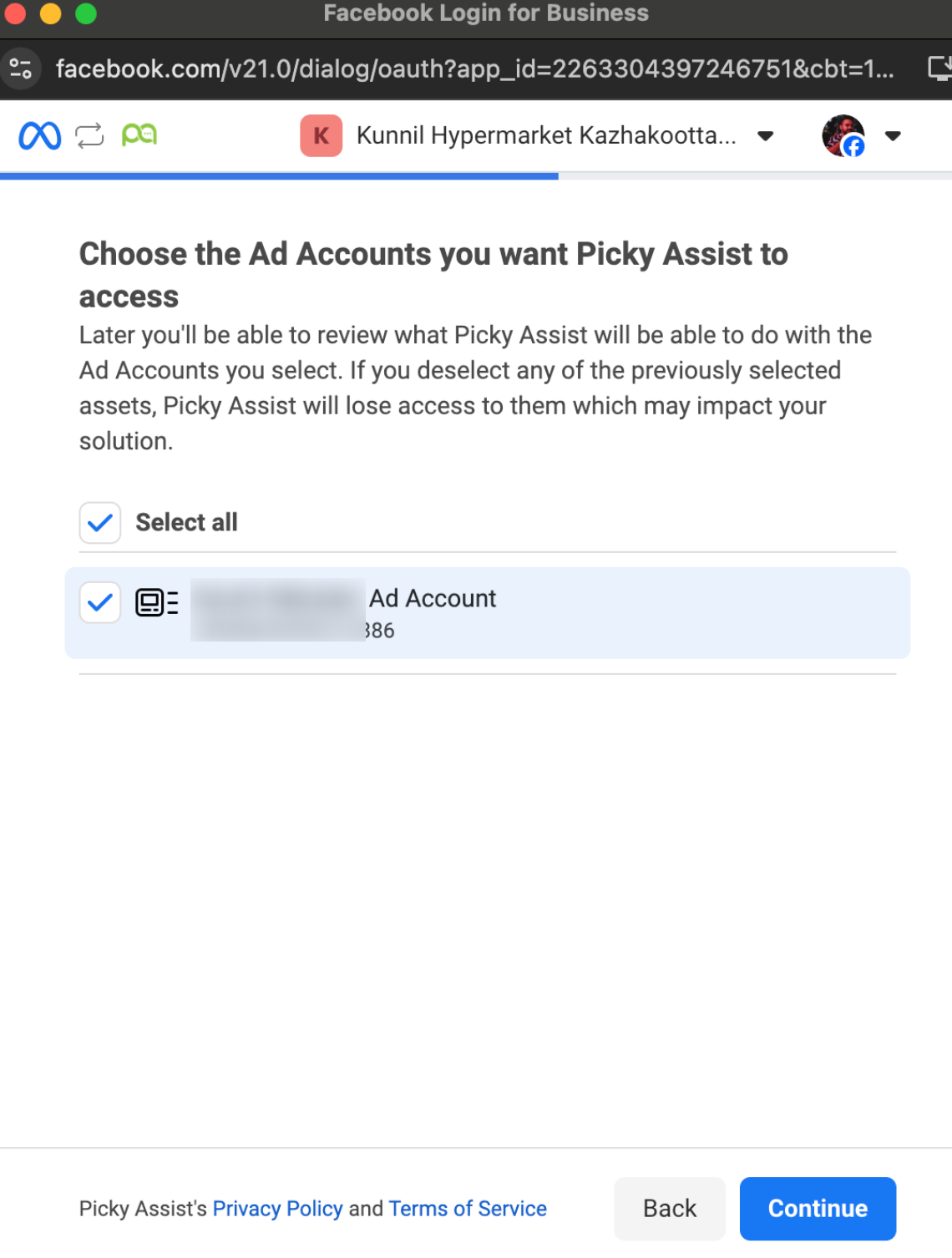
1. Go to **Main Menu →** [**Ad Tracking**](https://app.pickyassist.com/ad-tracking)
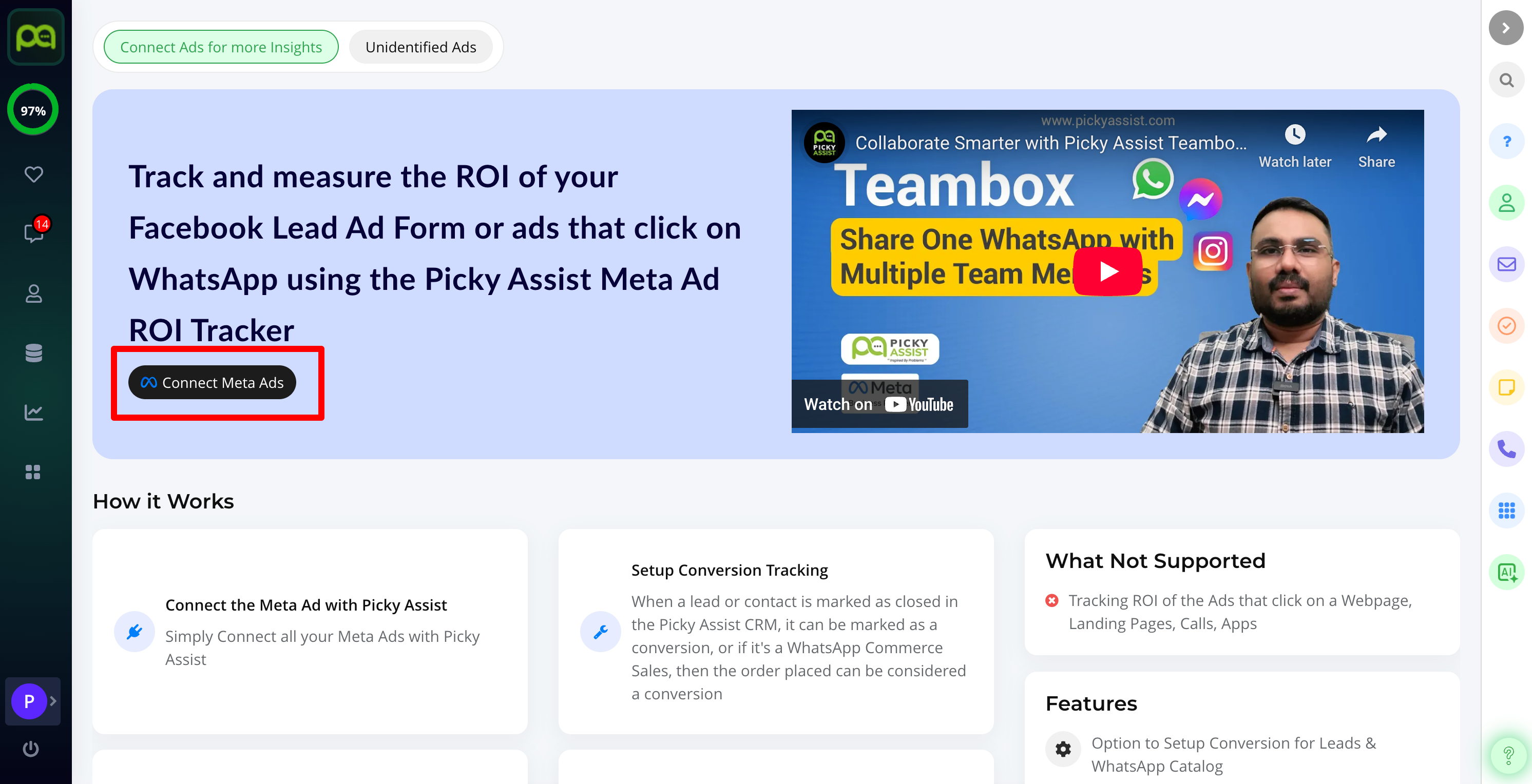
2. Click **Connect Meta Ad**
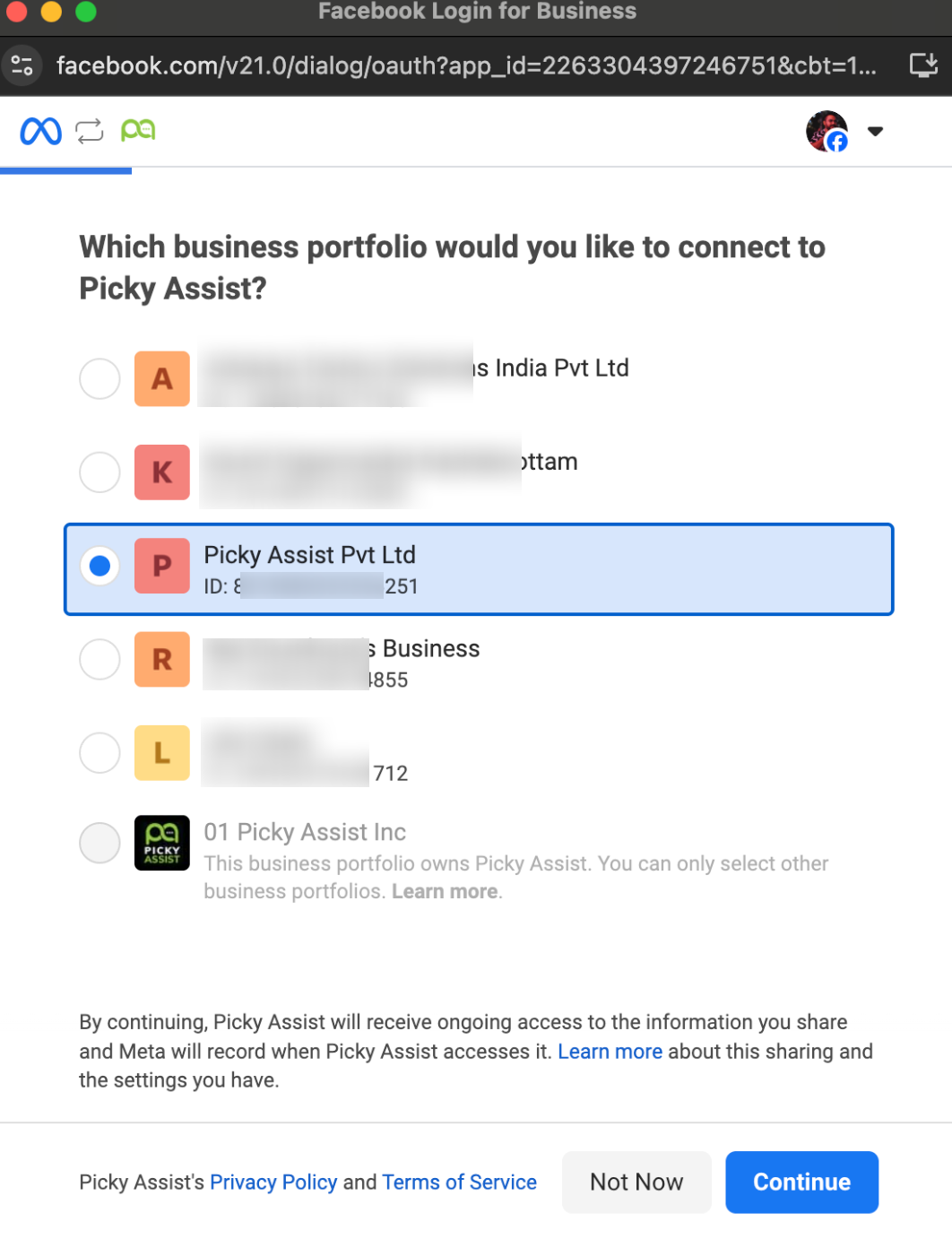
3. Select the **Meta Business Portfolio** running your ads\
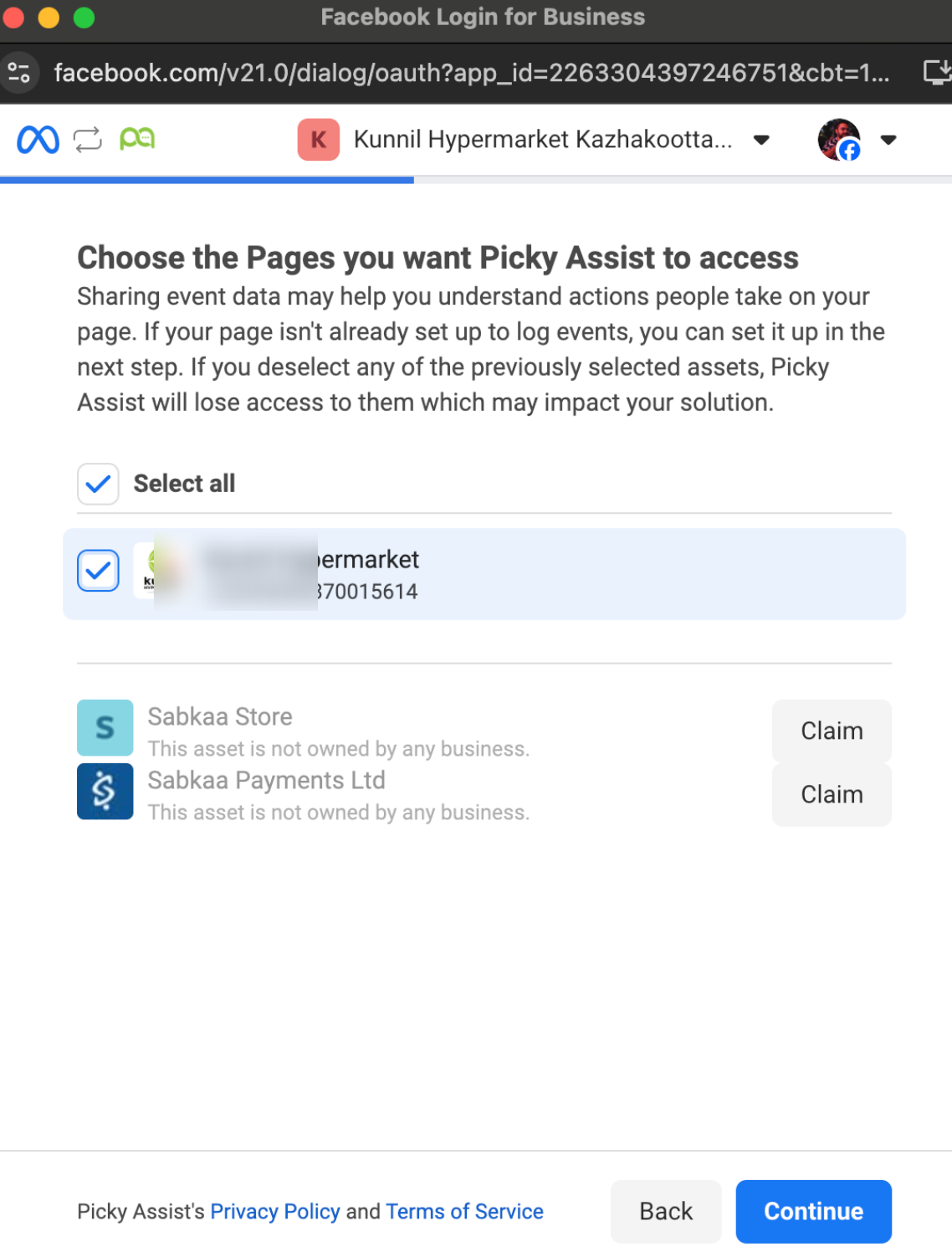
4. Select the **Facebook Page** you are running Ad\
5. Choose the **Ad Account** and complete authorization\
**Once connected:**
* Ads will start syncing automatically
* Initial sync may take some time
{% hint style="warning" %}
Note: In some cases, only **active or recently used ads** may sync initially.
{% endhint %}
## Understanding the ROI Tracker Dashboard
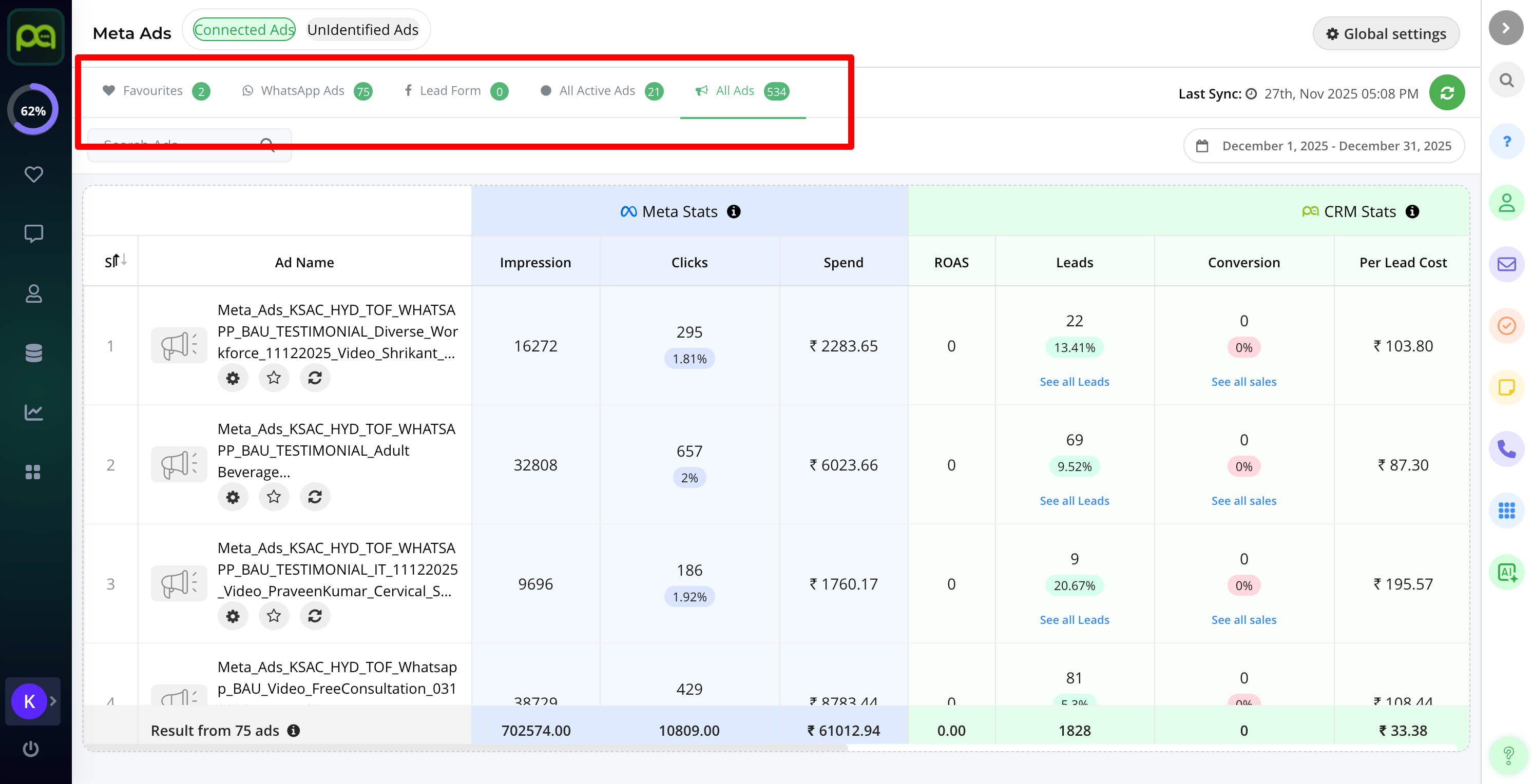
The ROI Tracker Dashboard is designed to help you quickly analyze ad performance and conversions without navigating through multiple tools. Ads are grouped into different tabs to make monitoring and comparison easier.
Each tab represents a specific view of your ads, allowing you to focus on what matters most at any given time.
#### 1. Favourites
* Add frequently monitored ads here
* Quick access for daily performance checks
#### 2. WhatsApp Ads
* Displays only **Click‑to‑WhatsApp Ads**
* Ads appear once leads start coming in
#### 3. Lead Form Ads
* Displays ads using **Facebook Lead Forms**
* Ads appear once leads are received
#### 4. All Active Ads
* Shows all **currently active ads** in your Meta Ad Account
#### 5. All Ads
* Complete list of **all ads** (active & inactive)
### Connected vs Unidentified Ads
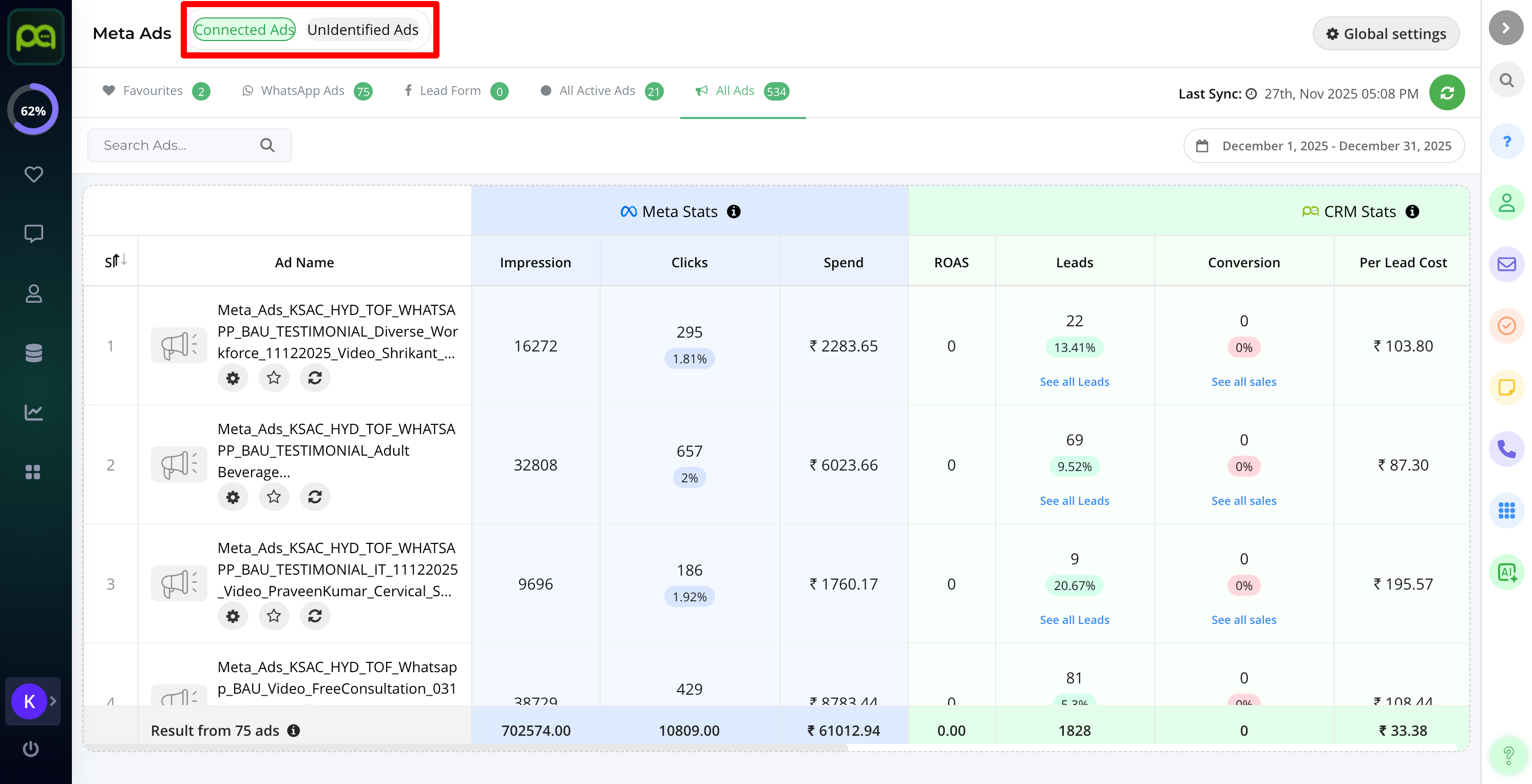
Not all detected leads can always be matched with full ad details. To address this, the dashboard separates ads into connected and unidentified categories.
Connected ads provide full insights and performance metrics, while unidentified ads indicate partial data due to missing or mismatched ad account connections.
#### Connected Ads
* Ads from the linked Meta Ad Account
* Full insights and performance metrics available
#### Unidentified Ads
* Leads detected, but ad account is **not connected**
* Limited data available
* Usually caused by: WhatsApp CTA using a different Meta Ad Account
### Filtering Dashboard Data
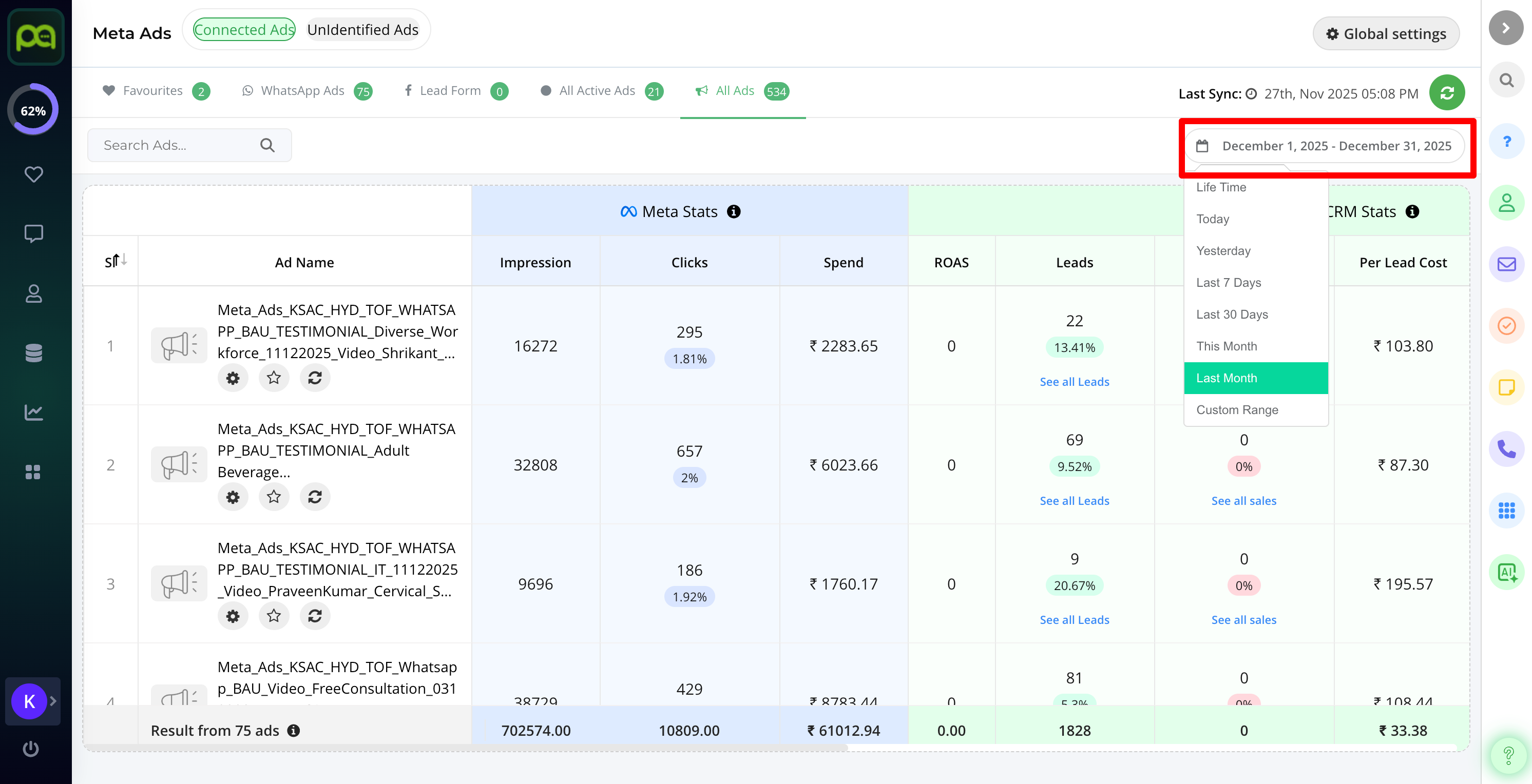
By default, the dashboard displays data for the current month. This makes it easy to review ongoing campaign performance at a glance.
If you want to analyze performance for a specific period, you can adjust the date filters to compare different ranges and trends.
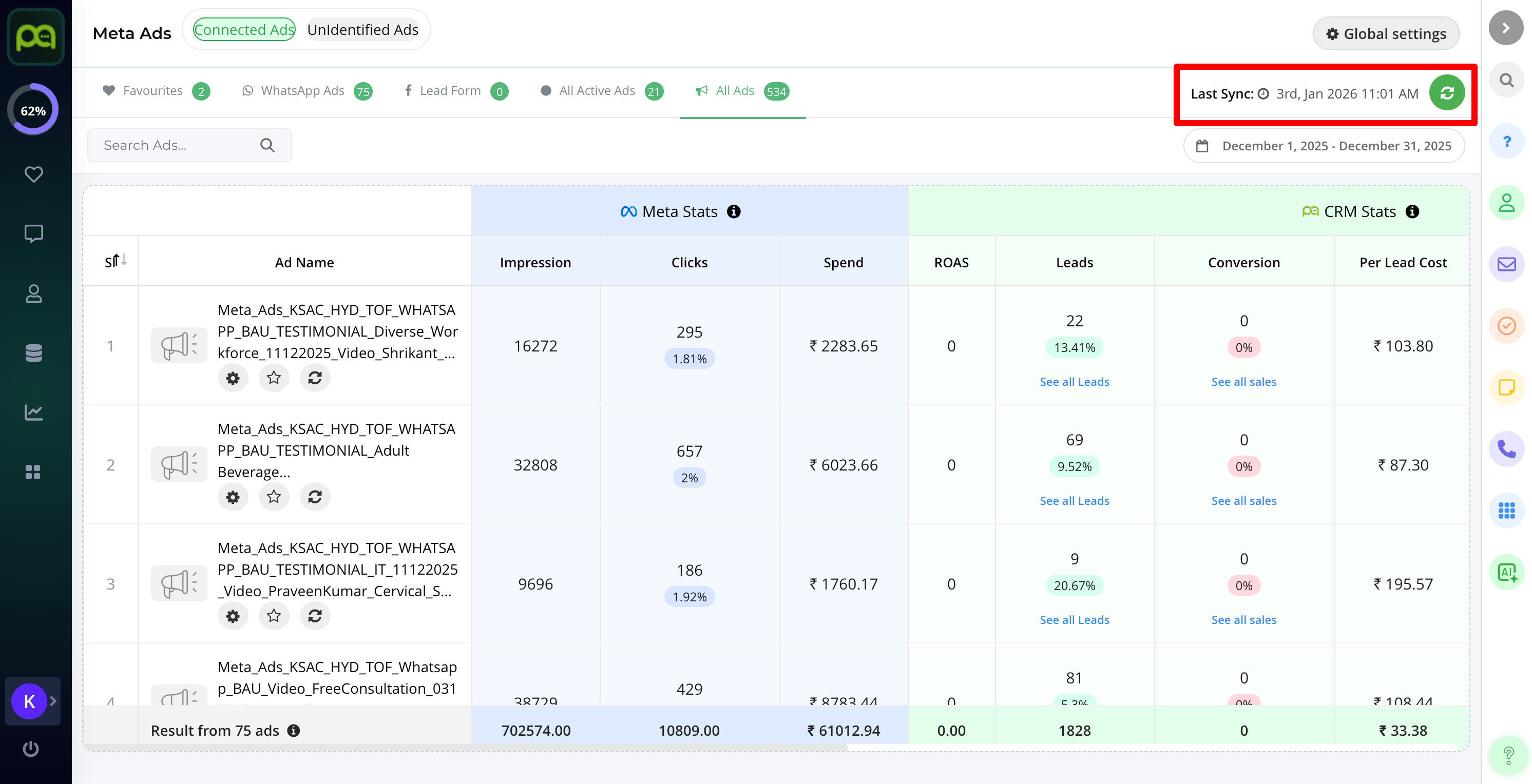
### Sync Details
Ad data is automatically synced when leads start flowing from a campaign. This ensures that the dashboard remains clean and relevant.
If an ad has been created recently and has not yet generated leads, you can manually trigger a sync to make it visible in the dashboard.
### Dashboard Columns Explained
Each row in the dashboard represents a single ad and displays a combination of Meta performance data and CRM conversion data. This side‑by‑side view makes it easy to understand how ad spend translates into actual business results.
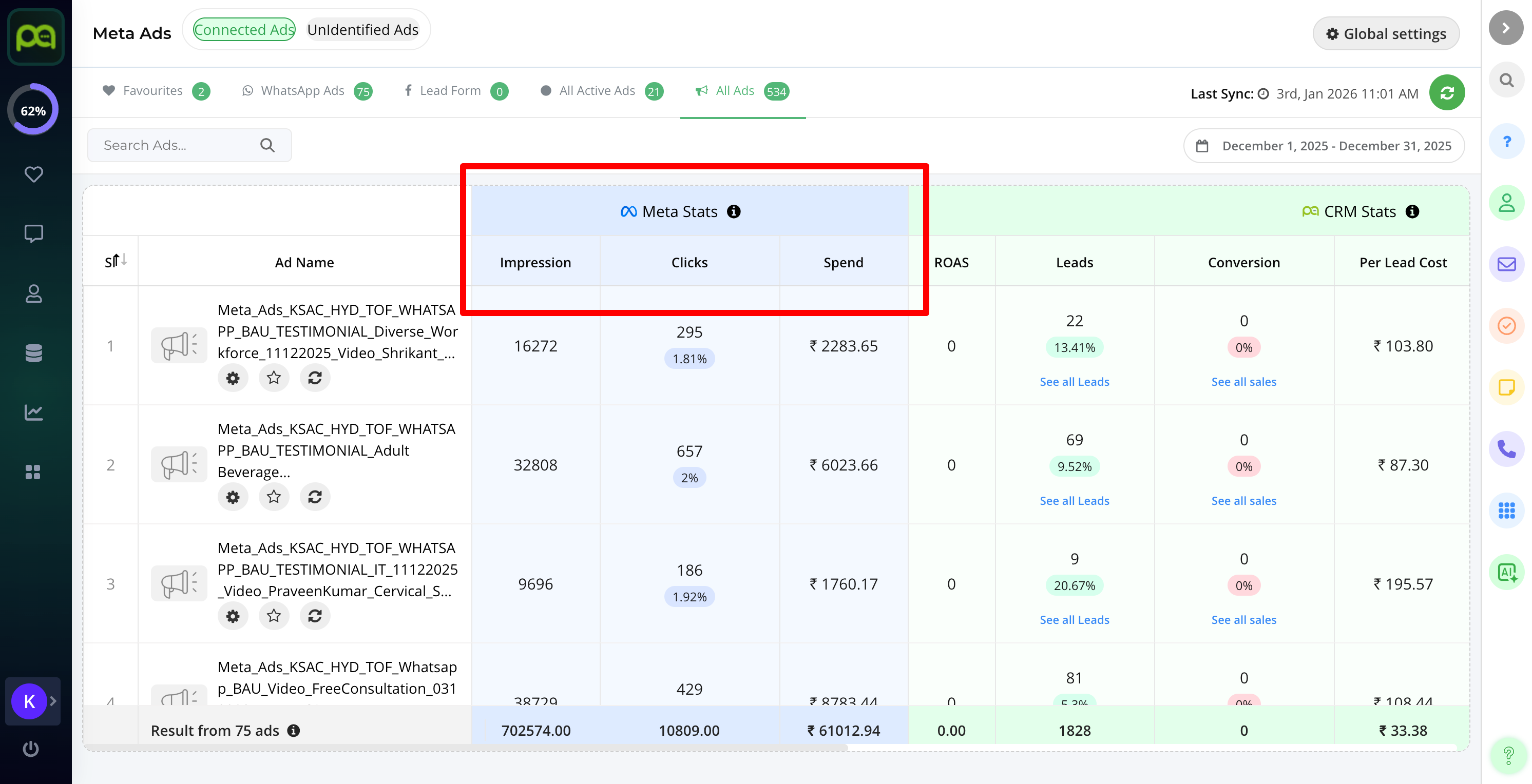
#### Meta Stats
Data fetched directly from Meta:
* **Impressions** – Number of times the ad was shown
* **Clicks** – Number of clicks received
* **Spend** – Total ad spend for selected period
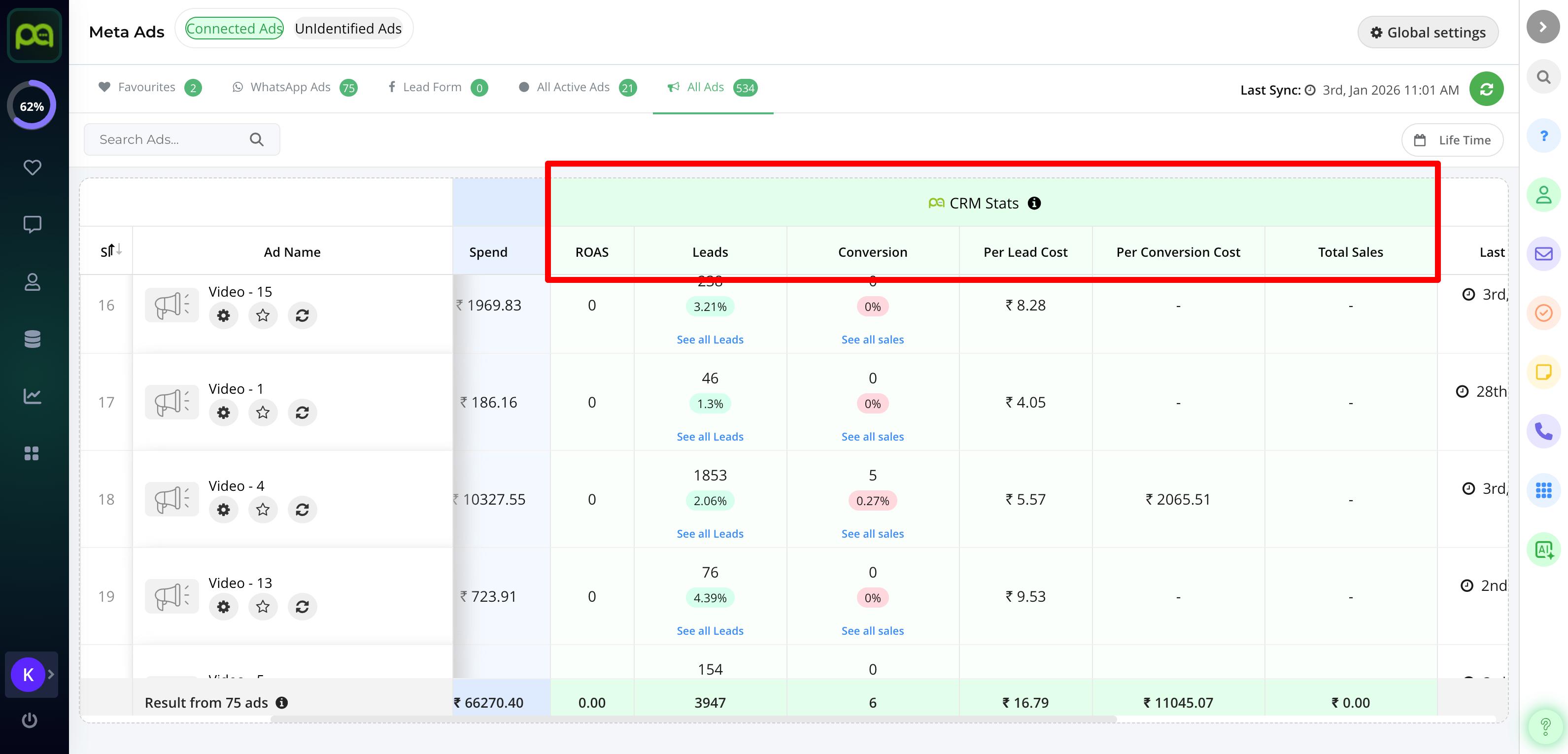
#### CRM Stats
Actual business performance from Picky Assist CRM:
**ROAS (Return on Ad Spend)**
* Available only when revenue is tracked
* **Formula:** `Total Revenue / Total Ad Spend`
**Leads**
* Total leads generated from the ad
* Click **See All Leads** to view in CRM
**Conversion**
* Number and percentage of leads converted to sales
* **Formula:** `Closed Leads / Total Leads × 100`
**Per Conversion Cost**
* Customer acquisition cost
* **Formula:** `Total Ad Spend / Number of Conversions`
**Per Lead Cost**
* Cost to generate one lead
* **Formula:** `Total Ad Spend / Total Leads`
**Total Sales**
* Revenue generated from **WhatsApp Commerce Orders**
### **Additional Columns Explained**
**Campaign Name**
Name of the campaign to which the ad belongs
* Represents the top-level grouping of ads
* A single campaign can contain multiple ad sets and ads
* Helps in identifying the overall objective or category of the ad
**Ad Set Name**
Name of the ad set under the campaign
* Represents a subgroup within a campaign
* Defines targeting, budget, and scheduling
* A single ad set can contain multiple ads
**Last Lead Received**
Timestamp of the most recent lead generated from the ad
* Helps track recent lead activity
* Useful to understand if the ad is actively generating leads
**Last Conversion Received**
Timestamp of the most recent successful conversion
* Indicates the latest sales or conversion activity
* Helps measure recent performance effectiveness
**Ad Created Date**
Date on which the ad was originally created
* Helps understand how long the ad has been running
* Useful for performance comparison over time
**Last Synced**
Last time the ad data was synced with the system
* Ensures data freshness and accuracy
* Helps identify delays or issues in data updates
#### Global Settings
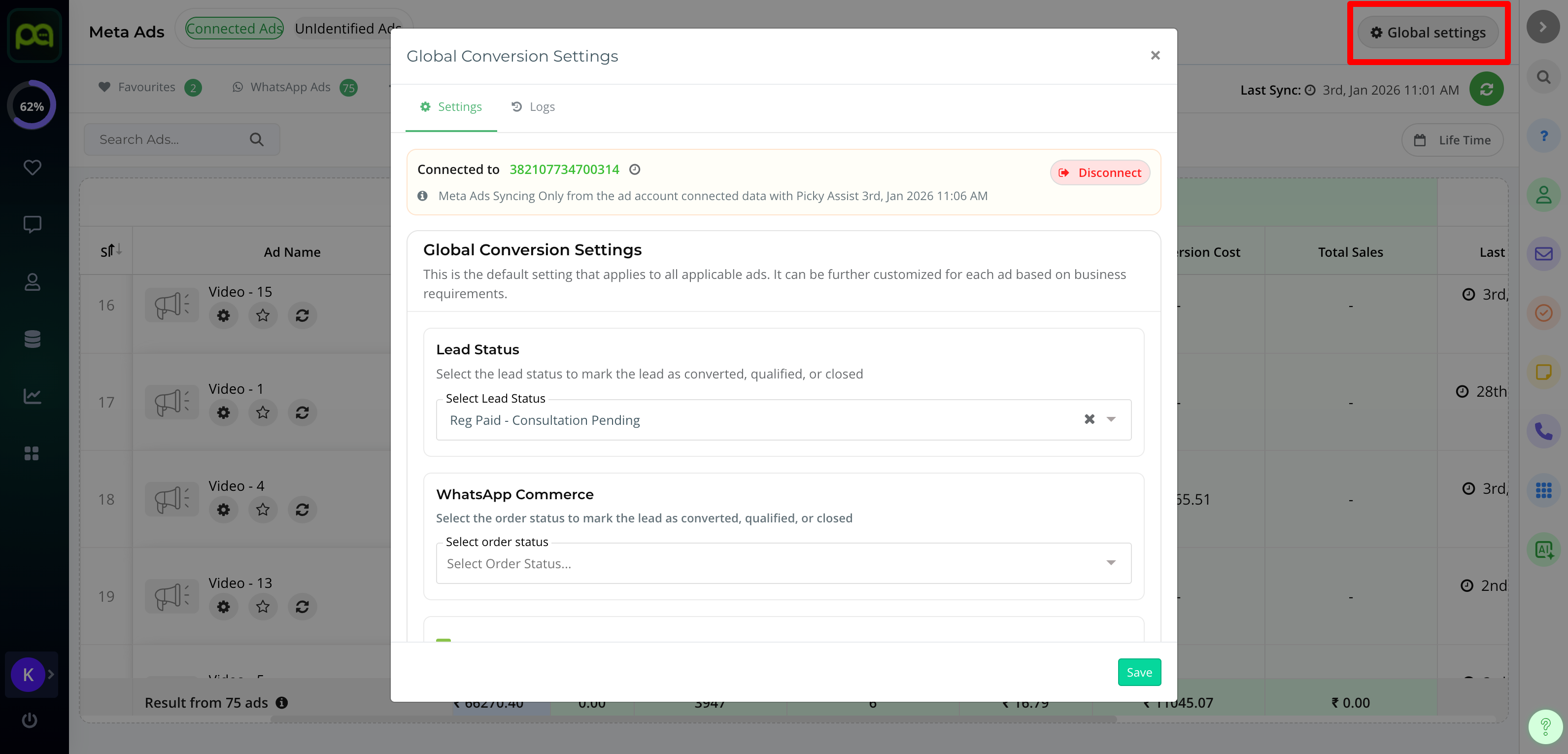
This section defines what should happen **automatically** whenever a new lead is received from any connected Meta Ad. These settings help ensure consistent conversion tracking, faster lead engagement, and seamless automation across your CRM, chatbots, and external systems.
You can apply these actions globally to all ads or override them later for individual camp
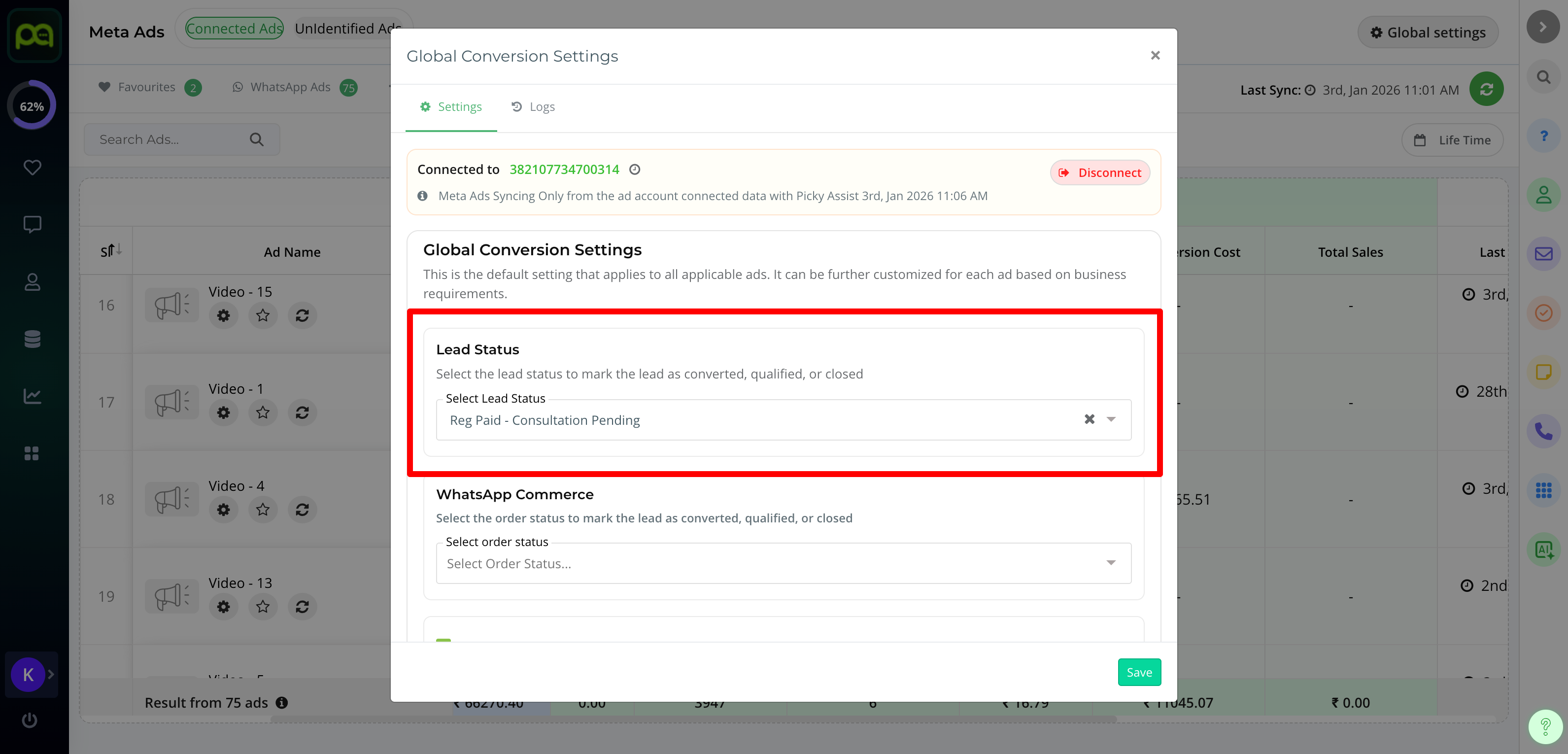
#### Lead Status (CRM)
This setting defines **which stage in the Lead module** should be treated as a successful conversion or closed business.
When a lead reaches the selected stage, Picky Assist considers it as **converted** and attributes the conversion to the corresponding Meta Ad. The default value is **Closed**, which works well for most businesses.
{% hint style="danger" %}
If you have customized your lead stages (for example, *Won*, *Paid*, or *Confirmed*), make sure to select the appropriate stage here to ensure accurate conversion tracking.\\
{% endhint %}
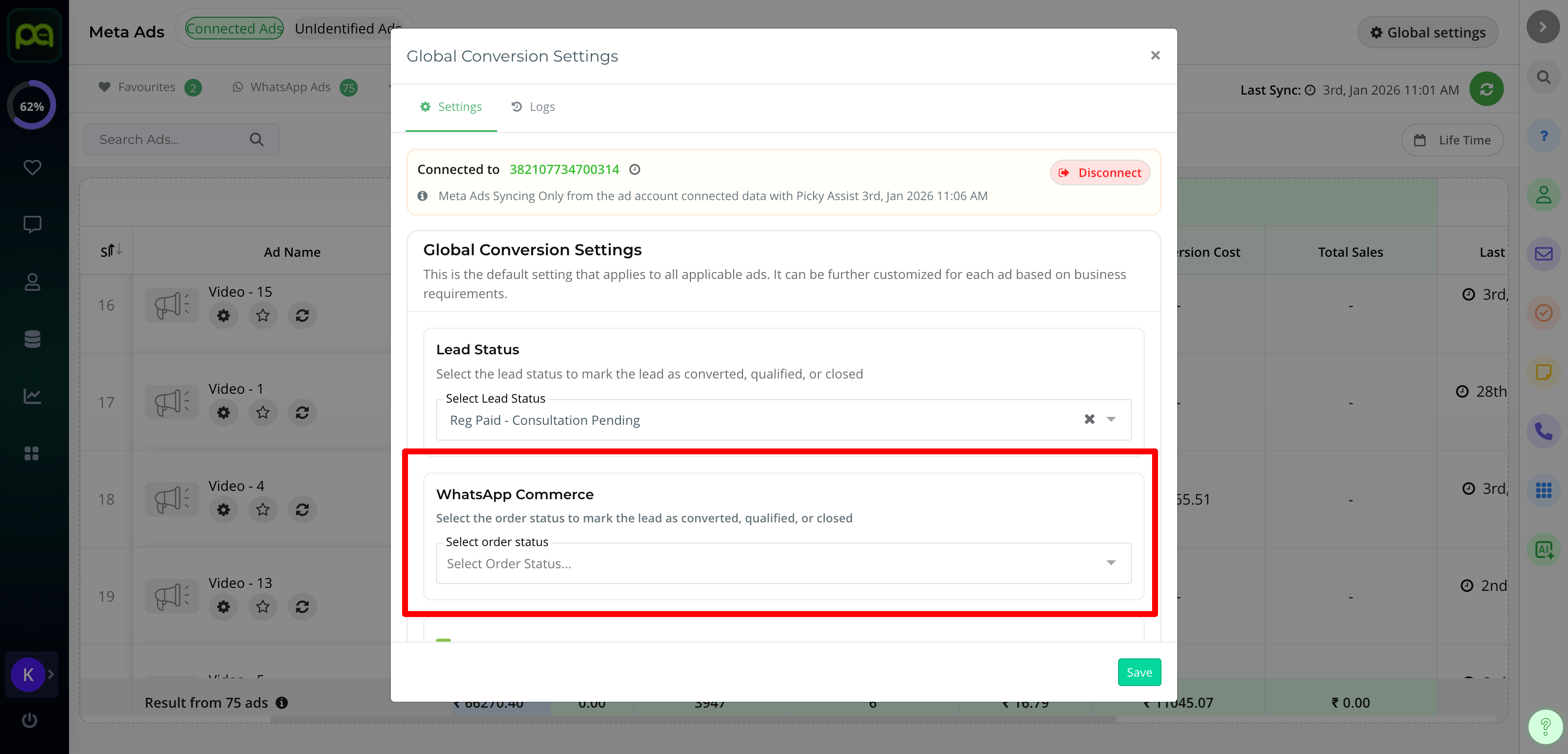
#### WhatsApp Commerce Status
This setting applies specifically to businesses using **WhatsApp Commerce** for order management.
It defines **which order status** should be considered as a completed sale. Once an order reaches this status, revenue is tracked and attributed to the ad that generated the lead. The default value is **Approved**.
If your order workflow uses custom statuses, ensure you select the correct one so that sales and ROAS are calculated correctly.
* Select which **Order Status** should be treated as *Completed*
* Default: **Approved**
{% hint style="warning" %}
If your CRM stages are customized, update these values accordingly.
{% endhint %}
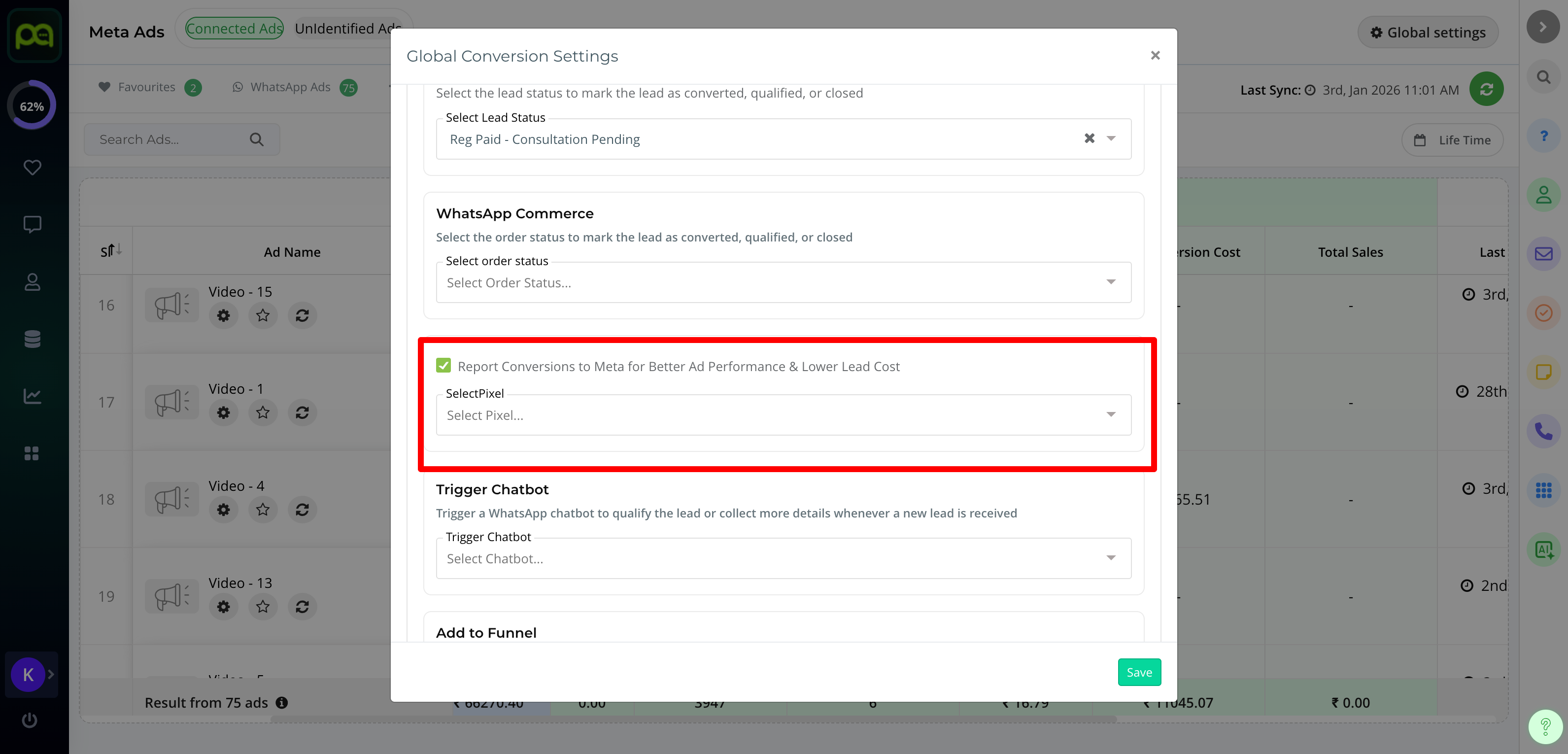
### Reporting Conversions to Meta
Enabling this option allows Picky Assist to **automatically report conversions back to Meta** when a lead is marked as closed in your CRM.
This feedback helps Meta’s algorithm understand which leads are valuable for your business, allowing it to optimize campaigns and deliver higher-quality leads. According to Meta, this can reduce **cost per lead by an average of 22%**.
When enabling this option, make sure to also select the correct **Meta Pixel** to ensure conversion events are recorded properly.
* Enable **Report Conversion to Meta**
* Select the relevant **Meta Pixel**
### Automation Options (Global)
Automation options allow you to take immediate action whenever a new lead is received from Meta Ads. These actions help reduce response time and improve lead engagement without manual effort.
You can trigger chatbots, add leads to nurture funnels, or route data to external systems based on your workflow needs.
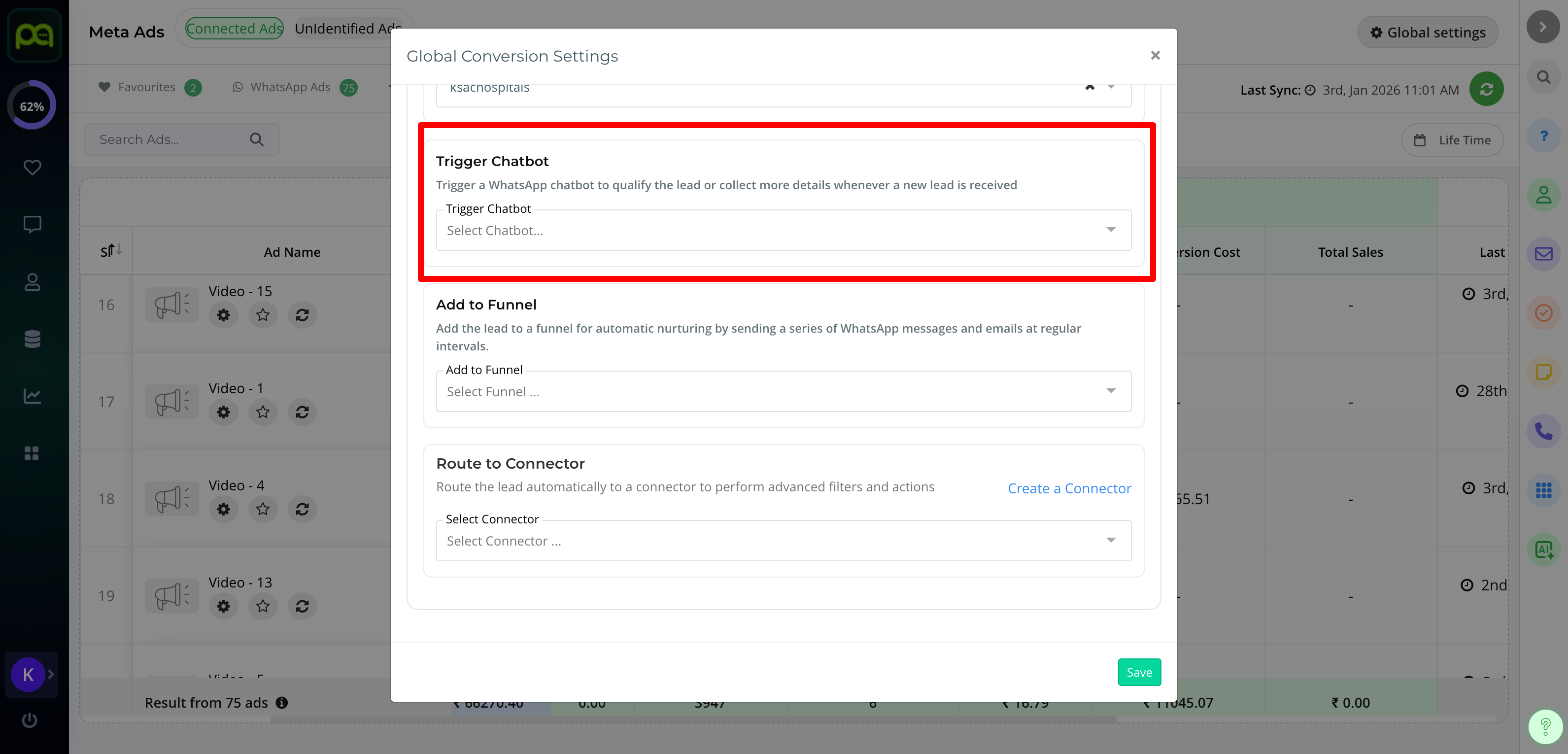
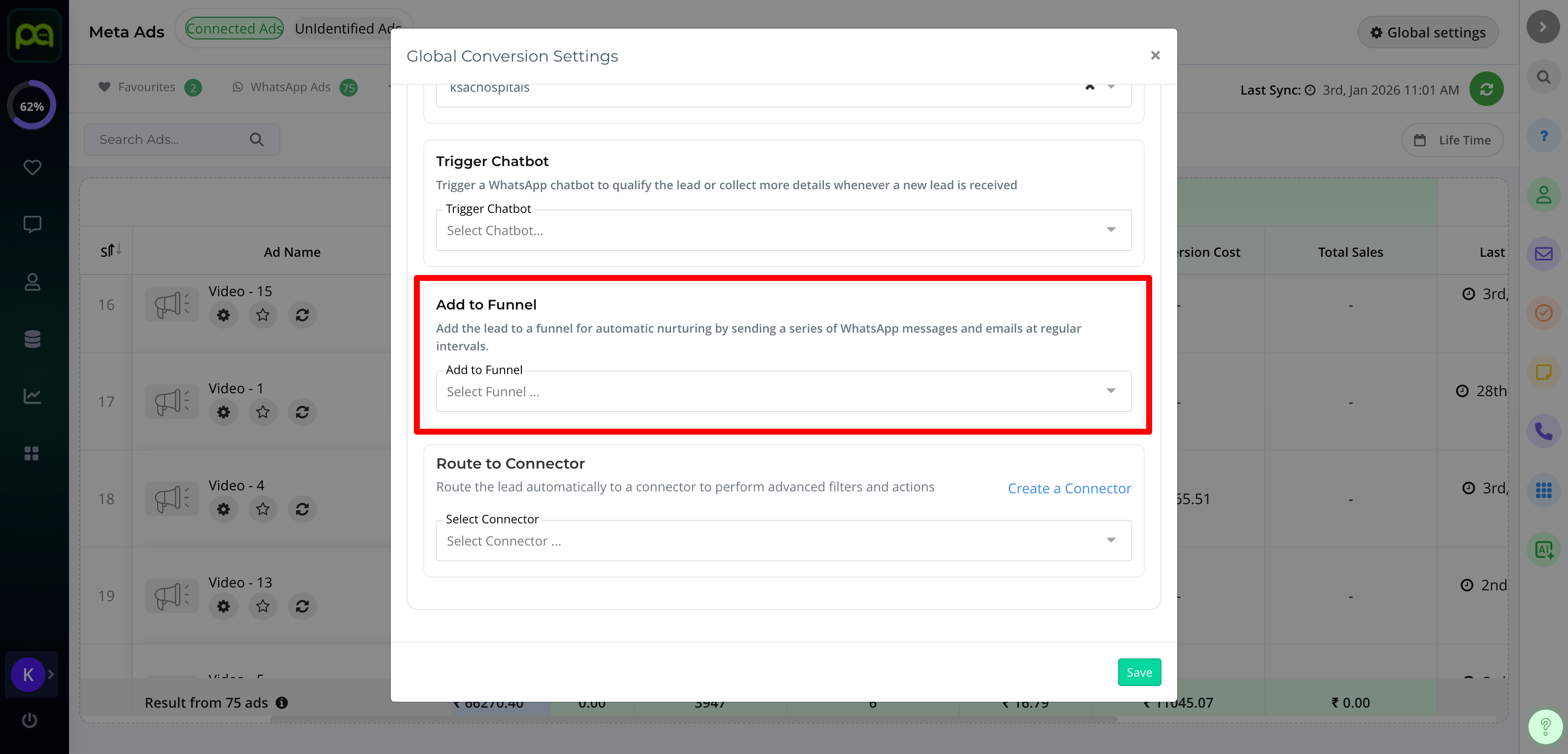
#### Trigger Chatbot
This option allows you to **automatically trigger a specific chatbot** whenever a new lead is received from any connected Meta Ad.
It helps ensure instant engagement and contextual conversations without manual intervention. The chatbot receives ad-level data such as **ad name, ad ID, campaign ID, lead name, and phone number**, which can be used to personalize messages and build data-driven flows.
Make sure the chatbot is properly configured to handle ad leads before enabling this option.
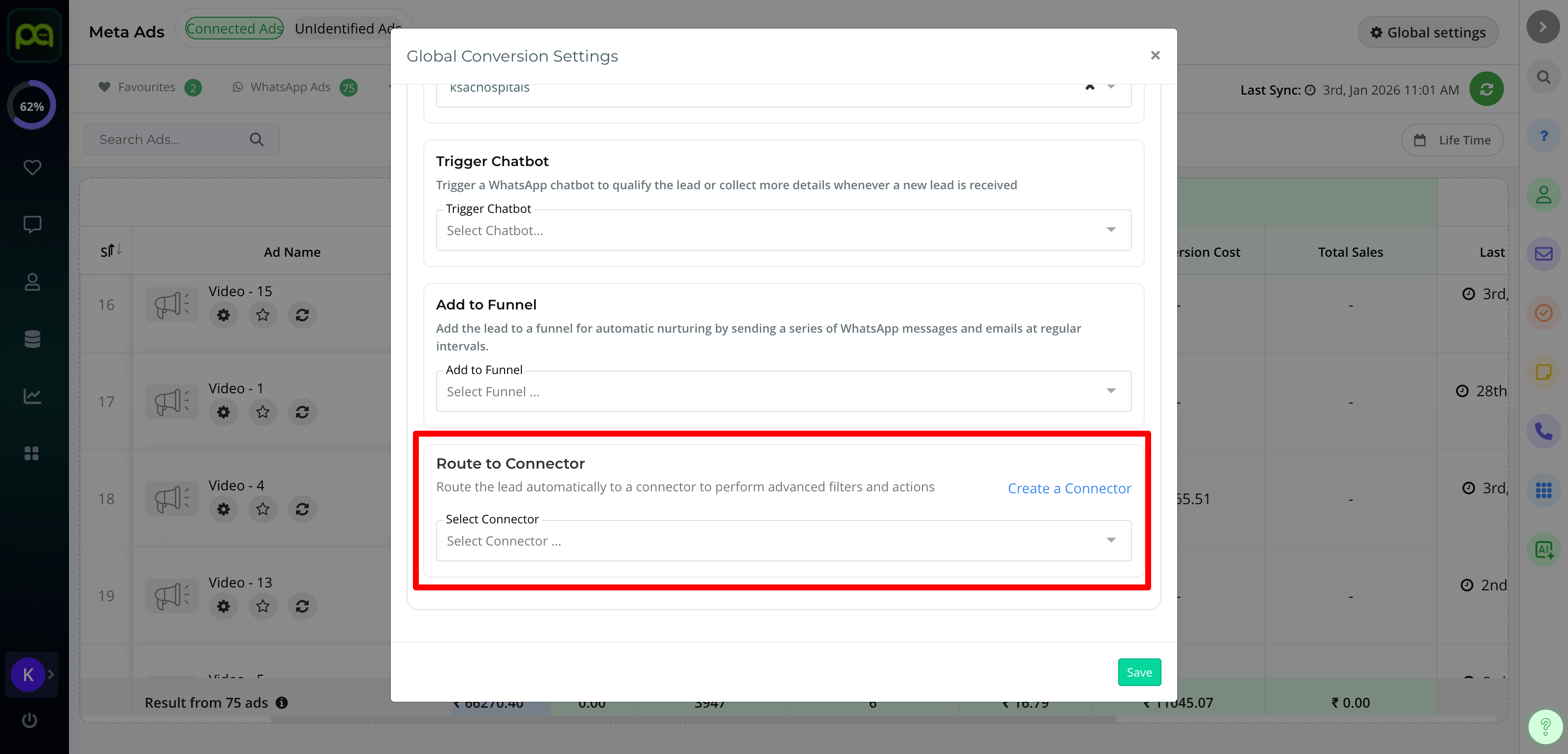
#### Add to Funnel
The Add to Funnel option allows you to **automatically enroll new ad leads into an existing nurture funnel** within the Contact module.
This is ideal for businesses that follow structured follow-ups, such as sending a sequence of WhatsApp messages, emails, reminders, or creating tasks for sales teams. It ensures that no lead is missed and every prospect receives consistent communication.
#### Route to Connector
Route to Connector is designed for **advanced automation use cases**.
This option is best suited for businesses with complex workflows or multi-system integrations. Perform advanced automations such as:
* Update external CRMs
* Assign lead owner (round‑robin)
* Send WhatsApp or Email
* Change lead status
{% hint style="warning" %}
### Important Notes
* Picky Assist automatically creates:
* **New Contact**
* **New Lead**
* Ensure existing workflows do **not conflict** with new record creation
* Avoid configurations that may cause **infinite loops**
{% endhint %}
### Ad‑Level Settings (Advanced)
While global settings work well for most use cases, some campaigns may require more granular control. Ad‑level settings allow you to override global behavior for specific ads.
This is especially useful for high‑value campaigns, different sales processes, or advanced automation requirements.
You can override global settings **per individual ad**.
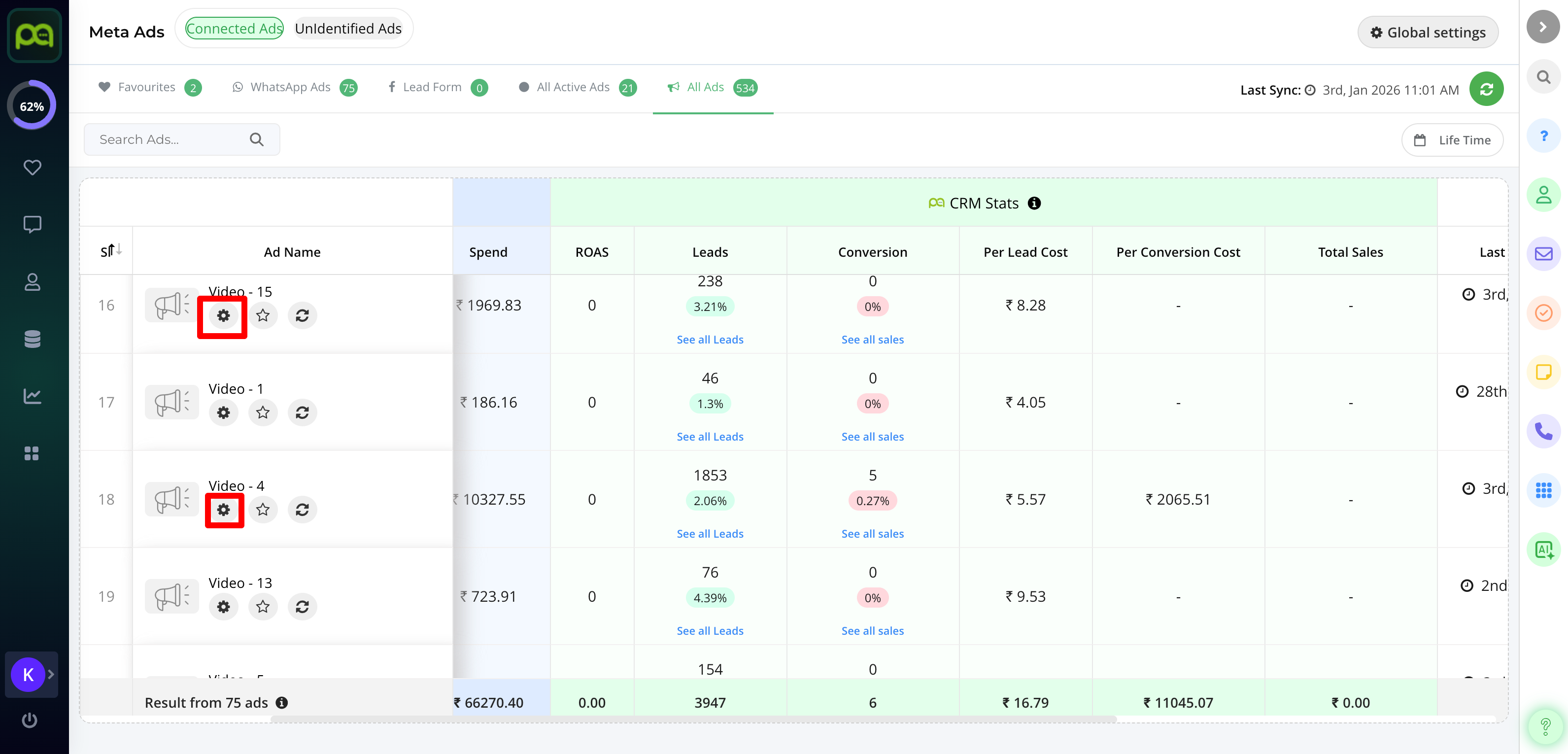
* Click the **gear icon** next to an ad
* Customize chatbot, funnel, connector, and conversion settings
* Ideal for advanced campaigns and custom workflows
---
# Agent Instructions
This documentation is published with GitBook. GitBook is the documentation platform designed so that both humans and AI agents can read, navigate, and reason over technical content effectively. Learn more at gitbook.com.
## Querying This Documentation
If you need additional information that is not directly available in this page, you can query the documentation dynamically by asking a question.
Perform an HTTP GET request on the current page URL with the `ask` query parameter, and the optional `goal` query parameter:
```
GET https://help.pickyassist.com/setting-up-guide/meta-ad-tracker.md?ask=&goal=
```
`ask` is the immediate question: it should be specific, self-contained, and written in natural language.
`goal` is optional and describes the broader end goal you are ultimately trying to accomplish on behalf of the user. GitBook uses it to tailor the answer towards what is most useful for that goal.
The response will contain a direct answer to the question and relevant excerpts and sources from the documentation.
Use this mechanism when the answer is not explicitly present in the current page, you need clarification or additional context, or you want to retrieve related documentation sections.