> For the complete documentation index, see [llms.txt](https://help.pickyassist.com/llms.txt). Markdown versions of documentation pages are available by appending `.md` to page URLs; this page is available as [Markdown](https://help.pickyassist.com/whatsapp-commerce/invoice/setup.md).
# Setup
Follow these steps to control invoice content, approval, and delivery.
### Before you start
* Invoicing is available in India only.
* Configure the catalog currently taking orders.
* Have your GSTIN and registered business address ready.
* Prepare an optional logo and signature image.
Only one catalog can be active and linked to WhatsApp at once.
### Step 1: Open the Invoice tab and enable invoicing
1. Go to **Ecommerce** → **Catalogs**.
2. Select the catalog and click **Edit**.
3. Open the **Invoice** tab, marked **NEW**.
4. Switch on **Enable Invoicing for Orders**.
Picky Assist then creates a GST invoice for every new catalog order. Use the **Live Invoice Preview** to review changes before saving.
The tab displays an India-only availability banner.
### Step 2: Set invoice numbering
Under **Invoice Numbering**:
1. Enter an **Invoice Prefix**, such as `INV-`.
2. Enter the number to **Start From**, such as `4500`.
The panel displays the next invoice number that will be used.
{% hint style="warning" %}
The prefix and starting-number combination must be unique across your account. This includes inactive catalogs.
{% endhint %}
### Step 3: Set the business profile and tax details
Under **Business Profile**, provide:
1. **Business Name**.
2. **Business Address**. Select **Same as catalog shop address** to reuse it.
3. **State**. Picky Assist uses this with the buyer address for Place of Supply.
These details appear in the invoice's **Sold By / Seller** section.
{% hint style="info" %}
We can choose to use the same address as the shop address configured in the catalog by enabling the “**Same as Catalog Shop Address**” option.
{% endhint %}
#### Under **Tax Details**, provide:
4. **GST Number (GSTIN)**.
5. **Default HSN/SAC Code**. Choose the code used by most products. Confirm its displayed GST rate.
6. **Include Tax** or **Exclude Tax**.
Choose **Include Tax** when product prices already include GST. Choose **Exclude Tax** when GST is added to product prices.
{% hint style="warning" %}
Keep this setting aligned with product pricing. Incorrect settings calculate tax against the wrong base.
{% endhint %}
### Step 4: Capture buyer GST details and add branding
1. Under **Buyer's GST Number**, enable **Ask customers for their GST number** for B2B checkout.
### Add branding
1. Upload a company logo as PNG or JPG, up to 1 MB.
2. Optionally enable **Authorised Signature**.
3. Upload the signature image, preferably PNG, up to 2 MB.
4. Add the signatory name and designation.
The logo appears at the invoice top. The signature appears at the bottom.
### Step 5: Add notes and select approval timing
Enable **Add Notes** for printed footer content. Add bank details, terms, return policies, or a thank-you note.
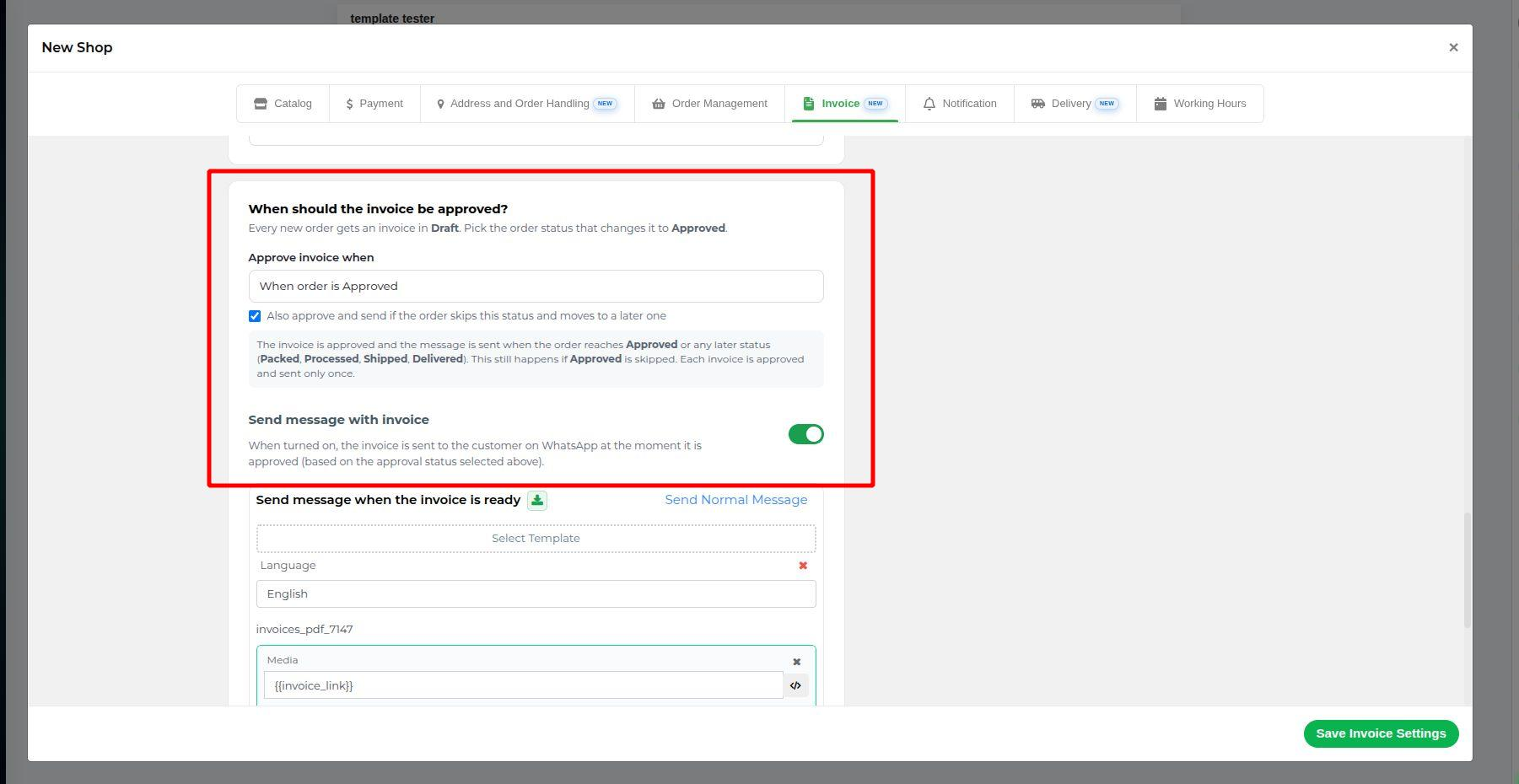
Under **When should the invoice be approved?**:
1. Every new order receives a Draft invoice.
2. Set **Approve invoice when** to an order status.
3. Keep **Also approve and send if the order skips this status** enabled.
{% hint style="info" %}
Each invoice is approved and sent only once. Draft invoices can be downloaded or sent manually. They are not approved or automatically sent until the selected status is reached.
{% endhint %}
### **Step 6: Select invoice approval timing**
Under **When should the invoice be approved?**, choose when each order's invoice changes from **Draft** to **Approved**:
1. Every new order gets an invoice in **Draft** status.
2. Set **Approve invoice when** to the order status that should approve the invoice: **Approved**, **Packed**, **Processed**, **Shipped** or **Delivered**.
3. Keep **Also approve and send if the order skips this status and moves to a later one** turned on. The invoice is then still approved if an order skips the status you chose, for example when an order goes from **Approved** straight to **Shipped**.
4. Each invoice is approved and sent only once, even when the order moves to later statuses.
{% hint style="info" %}
**Note:** If the skip option is turned off, the invoice is approved only when the order reaches the exact status you selected. If the order skips that status, the invoice stays in Draft.
{% endhint %}
### Step 7: Send invoices automatically
1. Enable **Send message with invoice**.
2. Under **Send message when the invoice is ready**, select a WhatsApp template and language.
3. Confirm the mappings under **Fill Dynamic Values**. Check customer name, order or invoice number, and business name.
4. Keep **Send Message to Contacts from existing Flow/Campaign** enabled when appropriate.
{% hint style="warning" %}
Automatic sending requires WhatsApp setup and an approved template. The invoice still becomes Approved when these are unavailable.
{% endhint %}
### Step 7: Set the default layout
In **Live Invoice Preview**:
1. Compare the **Tax Invoice** and **Tax Receipt** tabs.
2. Select **Set as default print layout** for your preferred layout.
The preview includes the invoice number, date, Place of Supply, balance due, buyer and seller details, itemized HSN and GST values, quantity, subtotal, grand total, amount in words, notes, and signature.
### Step 8: Save
Select **Save Invoice Settings**.
Saved changes apply only to future invoices. Existing invoices retain their original numbering, business details, layout, signature, and notes.
### Generate or resend an invoice manually
You can manually send or download an invoice at any order stage, including Draft.
1. Open the order in **Order 360**.
2. Select **Download Invoice**.
3. Choose **Send Invoice** to send it through WhatsApp, or **Download Invoice** to save the PDF see more in [Invoice](/whatsapp-commerce/invoice/introduction.md) section.
Use this when an invoice needs to be sent before automatic approval, or when a customer needs another copy.
---
# Agent Instructions
This documentation is published with GitBook. GitBook is the documentation platform designed so that both humans and AI agents can read, navigate, and reason over technical content effectively. Learn more at gitbook.com.
## Querying This Documentation
If you need additional information that is not directly available in this page, you can query the documentation by asking a question.
Perform an HTTP GET request on the following URL with the `ask` and `goal` query parameters:
```
GET https://help.pickyassist.com/whatsapp-commerce/invoice/setup.md?ask=&goal=
```
`ask` is the immediate question: it should be specific, self-contained, and written in natural language.
`goal` is what the user is ultimately trying to achieve, the reason they need the answer. Sharing it helps GitBook give you a better, more relevant answer. A goal is most helpful when it describes the outcome the user wants rather than restating the question. For example, with `ask=how do I create an API token`, a goal like `automate deployments from our CI pipeline` lets GitBook tailor the answer to that use case.
The response will contain a direct answer to the question and relevant excerpts and sources from the documentation.
Use this mechanism when the answer is not explicitly present in the current page, you need clarification or additional context, or you want to retrieve related documentation sections.