> For the complete documentation index, see [llms.txt](https://help.pickyassist.com/llms.txt). Markdown versions of documentation pages are available by appending `.md` to page URLs; this page is available as [Markdown](https://help.pickyassist.com/whatsapp-commerce/instant-code/instantcode-overview-and-usage-guide.md).
# InstantCode Overview & Usage Guide
**InstantCode** is a WhatsApp Commerce feature in **Picky Assist** that allows businesses to sell products directly from images, videos, or promotional creatives using a simple product code.Instead of asking customers to browse catalogs or click links, businesses can simply display a code. Customers send the code on WhatsApp, and the system automatically guides them through the ordering process.This approach helps businesses **capture purchase intent instantly**, reduce drop-offs, and automate ordering without manual effort.
{% hint style="warning" %}
InstantCode works best when products are clearly displayed and the code is visible and easy to read in marketing materials.
{% endhint %}
### How InstantCode Works
The working process of **InstantCode** is simple and fully automated.
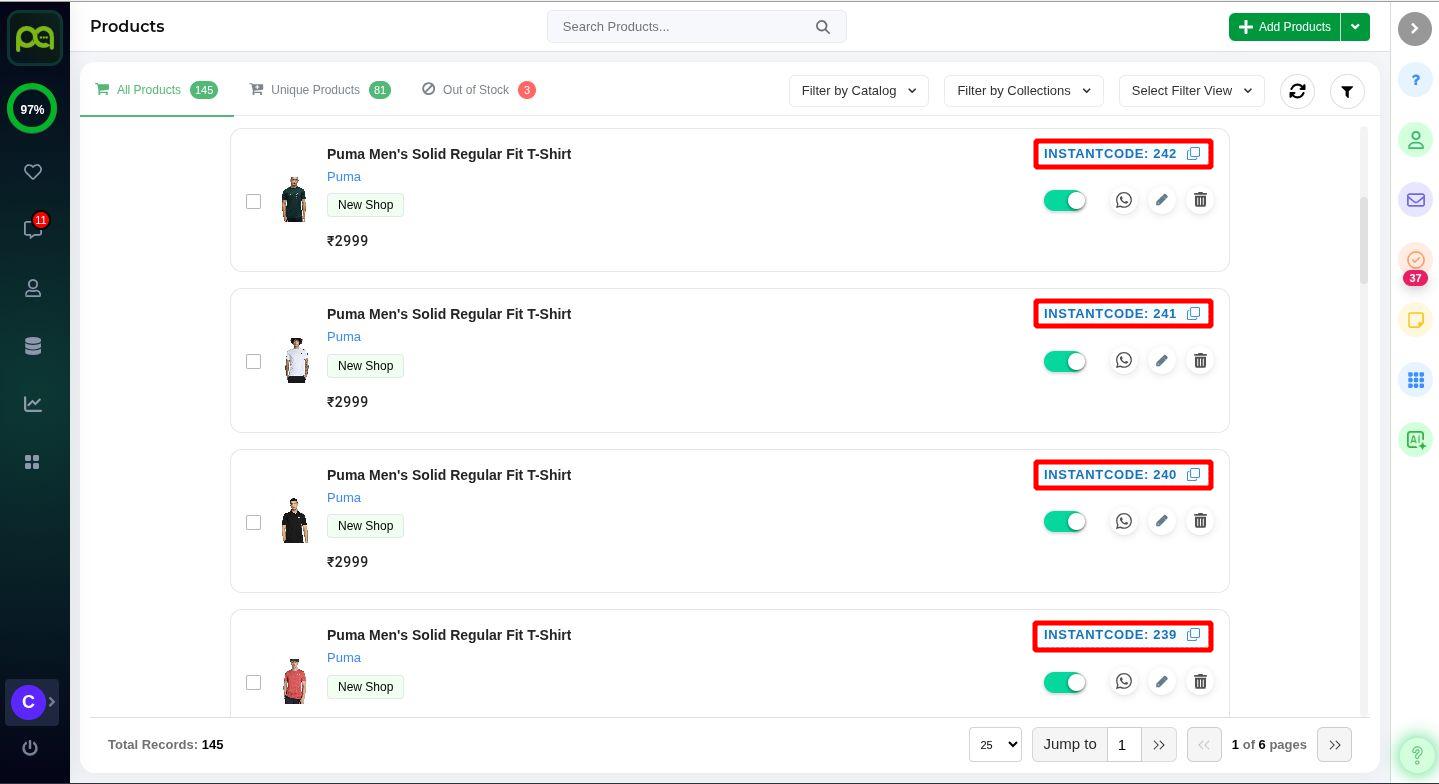
A product is created or synced in **Picky Assist**, and the system generates a **unique InstantCode** for it. Businesses can display this code in promotional materials such as videos, posters, social media posts, or advertisements.
When a customer sends this code to the business **WhatsApp number**:
* The system identifies the product
* Product details are shown automatically
* Customer details and address are collected
* Payment can be completed (if enabled)
* Order confirmation is sent automatically
All of this happens inside WhatsApp, without manual intervention.
{% hint style="success" %}
If a product is unavailable or out of stock, the system can display a custom message and optionally show alternate products,product collection or catalogue to avoid losing the customer.
{% endhint %}
### How to Set Up InstantCode
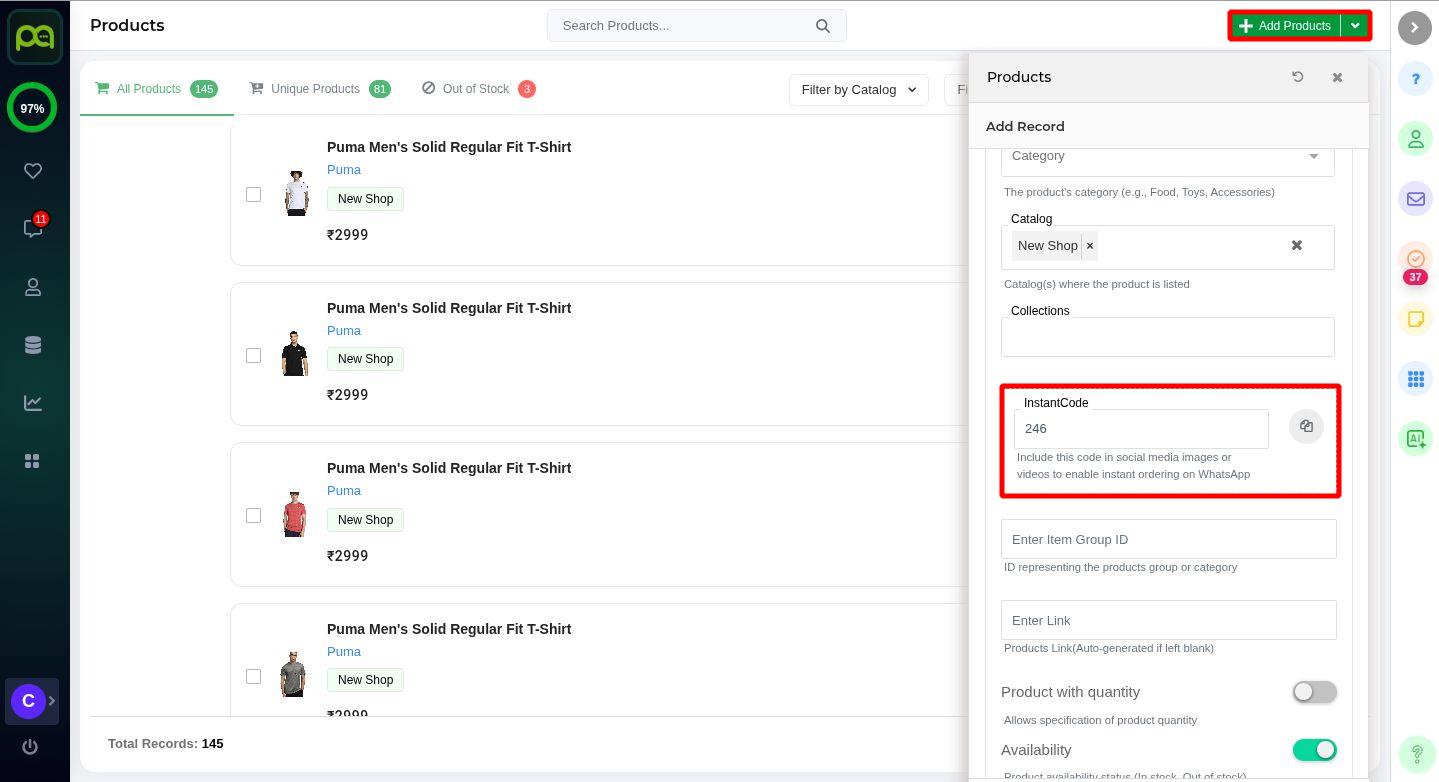
To set up InstantCode, first navigate to **All Menus → Commerce →** [**Products**.](https://app.pickyassist.com/commerce/products)
Then click on **Add Product** in the top-right corner.
When creating a product, a **default InstantCode** is automatically generated by the system. You also have the option to edit this code and customize it according to your preference.
After the product is created, you can click on **Edit Product** at any time to modify the InstantCode as needed.
For example, codes such as **123** or **blueshirt** can be used. InstantCodes are **not case-sensitive**, meaning both uppercase and lowercase inputs will work.
{% hint style="info" %}
Use short InstantCodes without spaces or special characters to avoid typing errors (example: *shirt01*, *offer123*).
{% endhint %}
### Advantages of InstantCode
InstantCode provides several practical benefits for businesses:
* Captures **buying intent instantly** from videos and images
* Reduces dependency on **links and landing pages**
* Enables **24×7 automated ordering**
* Reduces **manual responses** and operational workload
* Improves **conversion from social media content**
* Helps **retain customers** even when products are unavailable
It is especially effective for businesses that actively promote products through **reels, ads, and other visual content**, allowing customers to interact and purchase directly within WhatsApp.
### SETTING OUT OF THE STOCK MESSAGES
### How to customize and send out of the stock messages
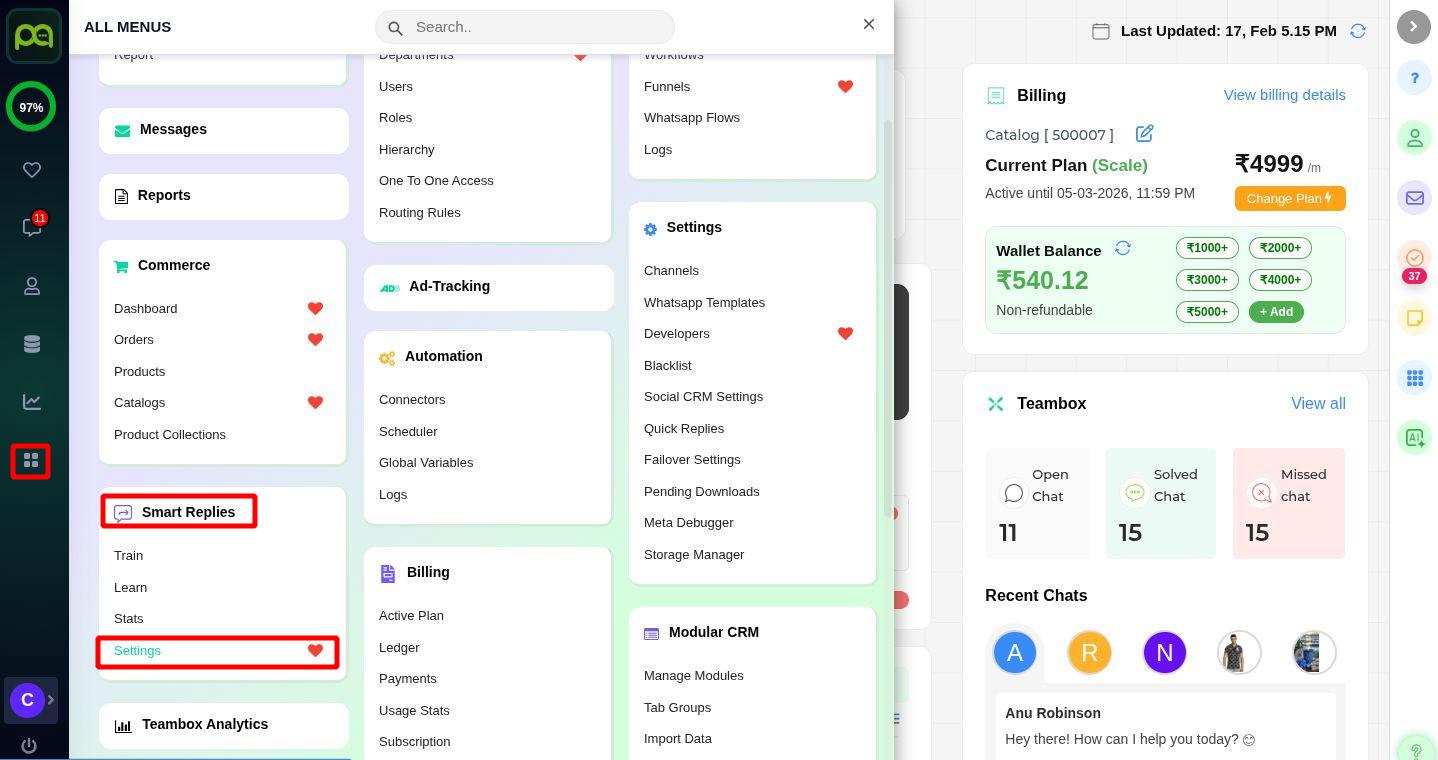
### Step 1 – Navigating to Smart Reply Settings
Go to **All Menus**, then under **Smart Replies**, click on [**Settings**.](https://app.pickyassist.com//smart-replies/settings)
### Step 2 – Customizing the Out-of-Stock Message
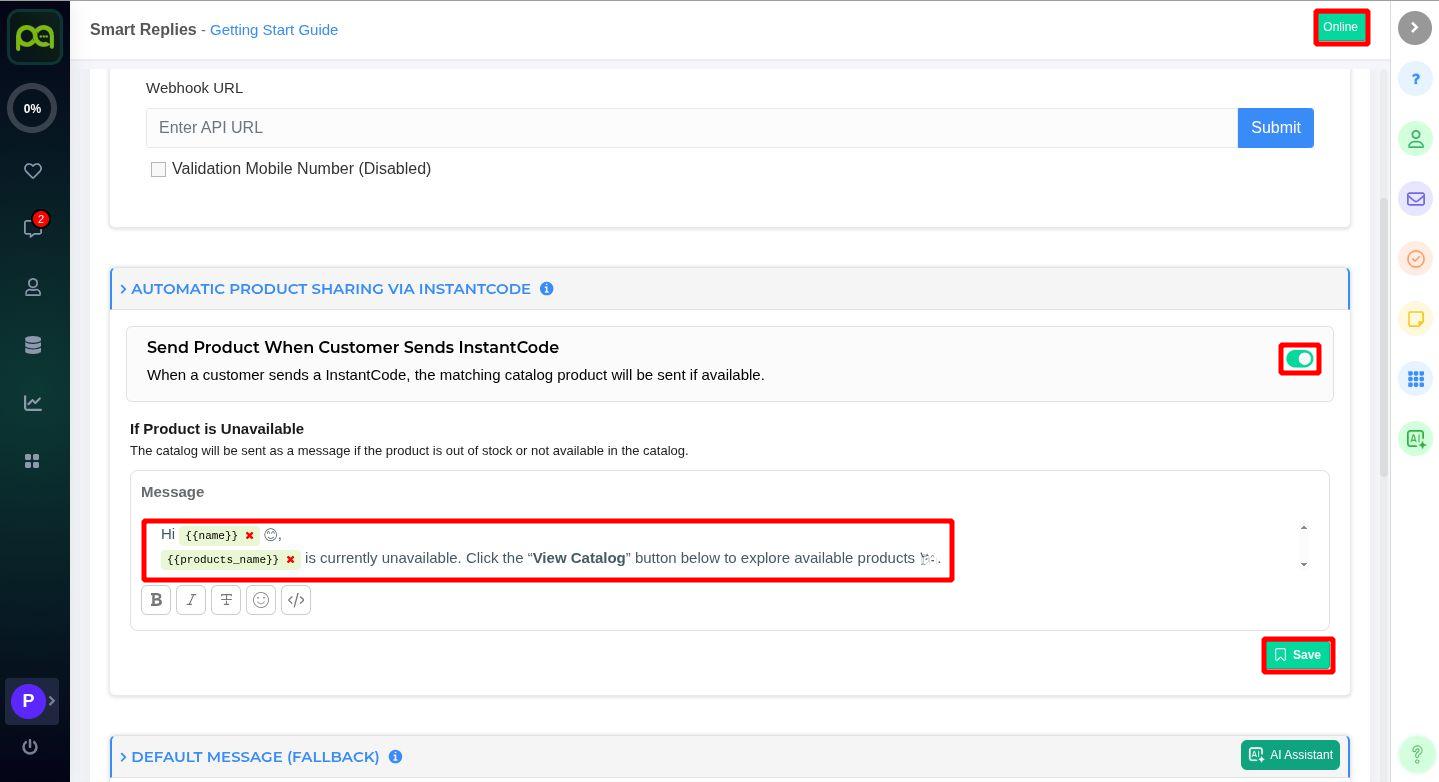
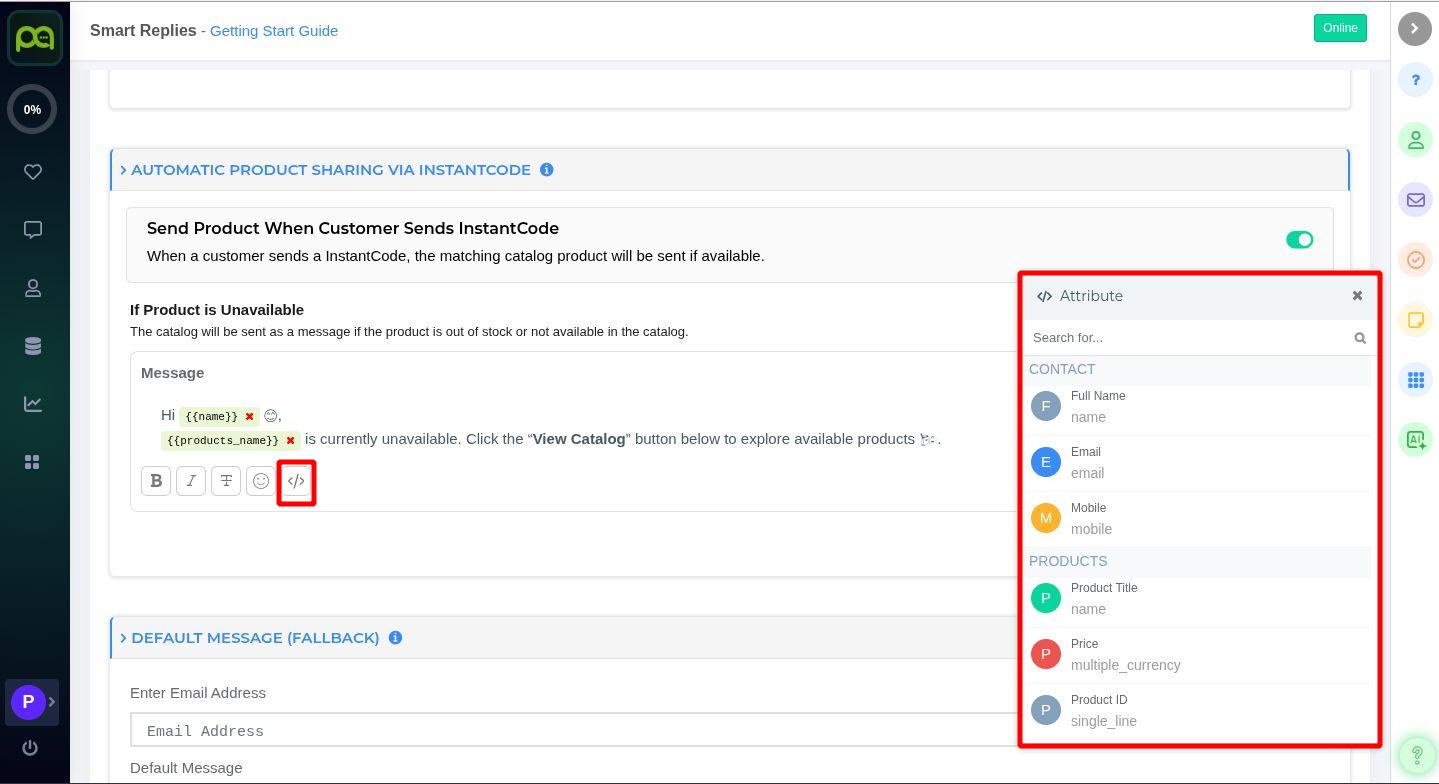
Scroll down slightly until you find the section **“Automatic Product Sharing via InstantCode.”**\
Ensure that the **toggle is enabled** and the status at the **top-right corner shows Online**.\
If you do not wish to use this feature, you can **disable it at any time** by turning off the same toggle button.
{% hint style="info" %}
Make sure that **Smart Reply is enabled**, the **channel status is set to Online**, and all changes are **saved properly** to ensure the feature works as expected.
{% endhint %}
You can **edit the message content** in this section to customize the outgoing response based on your business needs. After making the required changes, click **Save** to apply them.
### Step 3 – Using Attributes to Personalize Messages
While customizing the message, you can use **attributes** to automatically insert customer or product details. Commonly used attributes include **Name, Email, Phone Number, Product Title, Price, and Category**.
All available attributes are listed below , and you can insert them easily by clicking the **Attribute icon** and placing them in your message.
For example:\
*Hi **{Name}**, your selected **{Product Title}** is not currently available. You can explore similar products under this **{Category}**.*
{% hint style="success" %}
Using attributes helps create **personalized and professional messages** without manual typing.
{% endhint %}
### Benefits of Customizing Outgoing Messages
InstantCode allows businesses to customize system messages shown to customers during the ordering flow.
These messages may include:
* Product availability messages
* Out-of-stock notifications
* Order confirmation messages
* Fallback catalog suggestions
Customizing these messages helps maintain a consistent brand tone and improves customer experience.
{% hint style="success" %}
Keep messages short, friendly, and action-oriented for better response rates.
{% endhint %}
### Best Practices for Using InstantCode
To get the best results:
* Display codes clearly in images or videos
* Use high-quality product visuals
* Keep codes short and easy to remember
* Ensure products and pricing are updated regularly
* Test the ordering flow before running campaigns
{% hint style="danger" %}
Always verify stock availability and automation flows before promoting an InstantCode publicly.
{% endhint %}
InstantCode simplifies the process of selling through WhatsApp by allowing customers to order products instantly using a simple code. By combining automation, product catalogs, and messaging, businesses can reduce manual work, improve conversion rates, and provide a smoother buying experience.
When used correctly with clear marketing and updated product data, InstantCode becomes a powerful tool for **WhatsApp-based commerce and social selling**.
---
# Agent Instructions
This documentation is published with GitBook. GitBook is the documentation platform designed so that both humans and AI agents can read, navigate, and reason over technical content effectively. Learn more at gitbook.com.
## Querying This Documentation
If you need additional information that is not directly available in this page, you can query the documentation dynamically by asking a question.
Perform an HTTP GET request on the current page URL with the `ask` query parameter, and the optional `goal` query parameter:
```
GET https://help.pickyassist.com/whatsapp-commerce/instant-code/instantcode-overview-and-usage-guide.md?ask=&goal=
```
`ask` is the immediate question: it should be specific, self-contained, and written in natural language.
`goal` is optional and describes the broader end goal you are ultimately trying to accomplish on behalf of the user. GitBook uses it to tailor the answer towards what is most useful for that goal.
The response will contain a direct answer to the question and relevant excerpts and sources from the documentation.
Use this mechanism when the answer is not explicitly present in the current page, you need clarification or additional context, or you want to retrieve related documentation sections.